

Medley reads the playlists in your Music library and shows how they fit together: every playlist a song is in, which playlists overlap, the songs you meant to file but never did, and playlists you could make from what you already have. Your music stays in Apple Music. Medley changes a playlist only when you ask, and saves a copy to History first.
First run
- Read the welcome pages, or skip to the last one.
- Choose Continue to let Medley see your music. The system then asks for access to Media & Apple Music.
- Medley reads your playlists and opens on Your Music.
A short tour then points out the main controls. Run it again any time from Settings ▸ Help & Tips ▸ Take the Tour.
On a Mac, Medley also asks to control Music the first time you play or edit something. That permission is listed under System Settings ▸ Privacy & Security ▸ Automation.
Try the Demo Library first
If you would rather look around before giving access, choose Try the Demo Library on the last welcome page. It is a made-up library, built to show every kind of finding Medley makes. Nothing you do in it changes anything.
When you are ready, open Settings ▸ Library and choose Use My Music Instead.
What Medley reads
Medley reads your playlists and the songs in them, including songs that are only in a playlist and not in your library, and Music’s own counts of plays and skips. It also reads My Shazam Tracks and your Favourites, so the Inbox can show what you have not filed yet.
Medley reads again when it opens and whenever Music changes your playlists. To read straight away, choose Read Playlists Again in Settings ▸ Library, choose the circular arrow at the foot of the sidebar, or press ⌘R on a Mac.
Settings ▸ Library shows how many playlists and songs Medley has read, and whether it has access. If access is off, Open System Settings takes you to the right place to turn it back on.
Find your way around
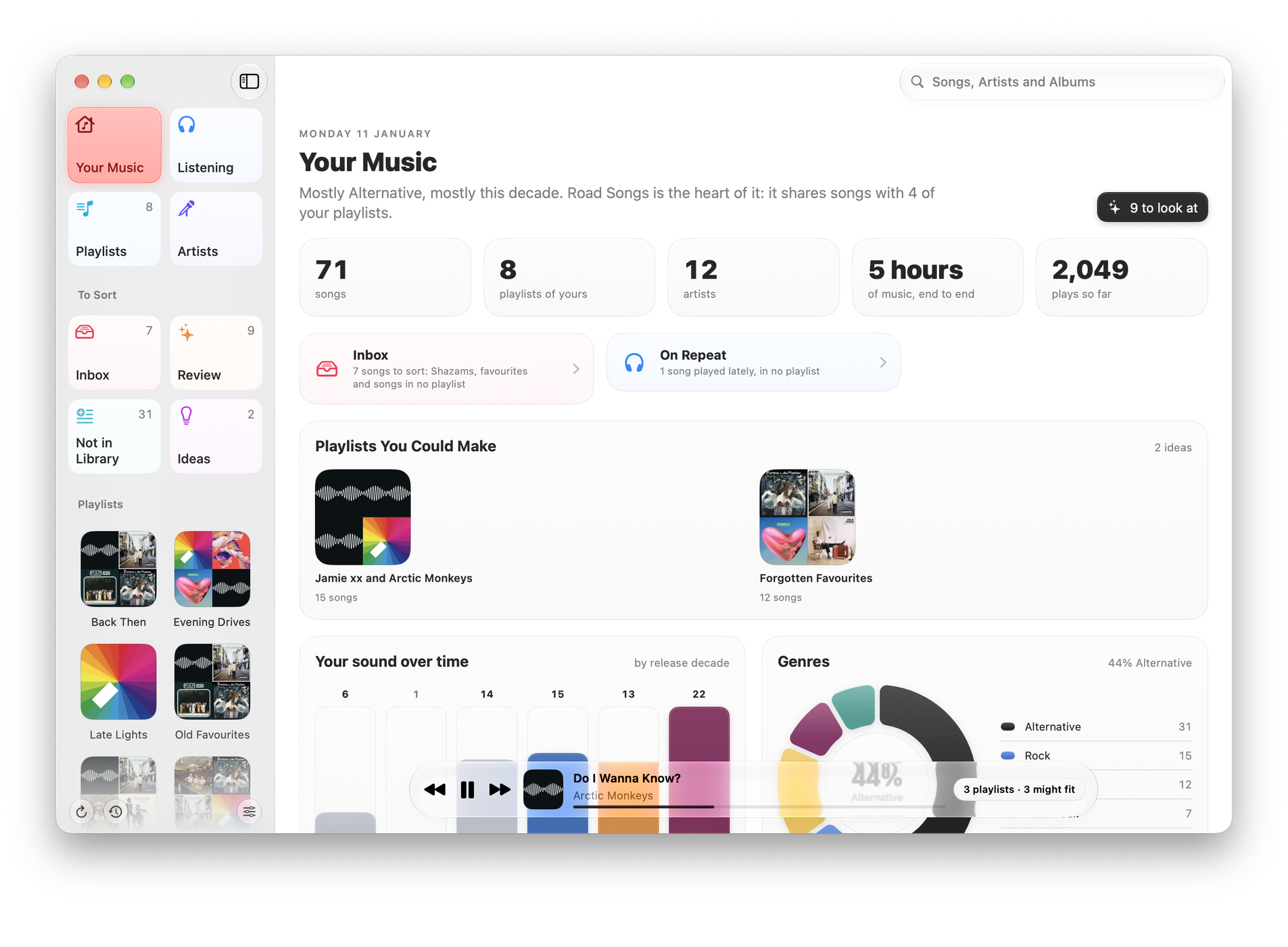
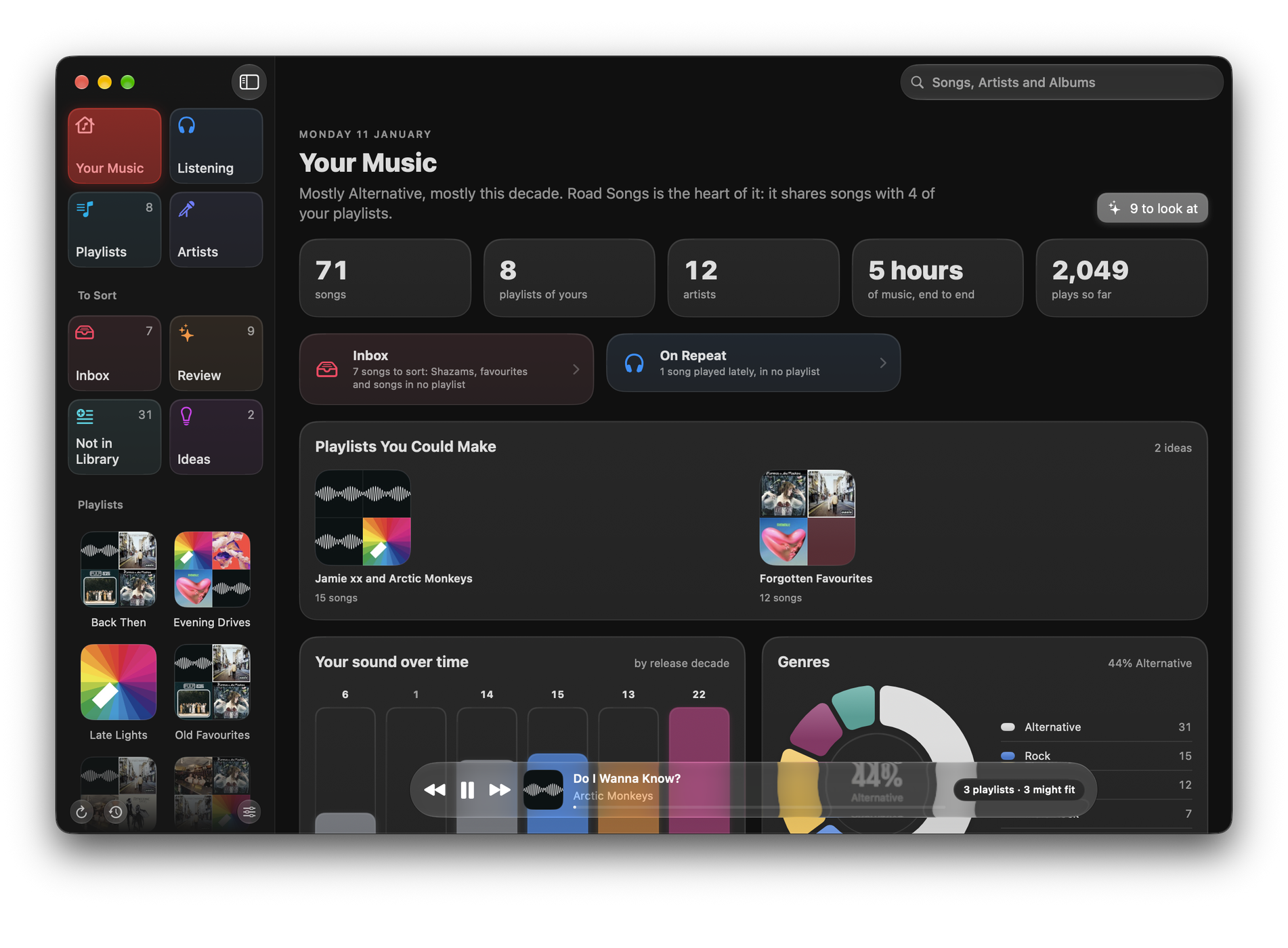
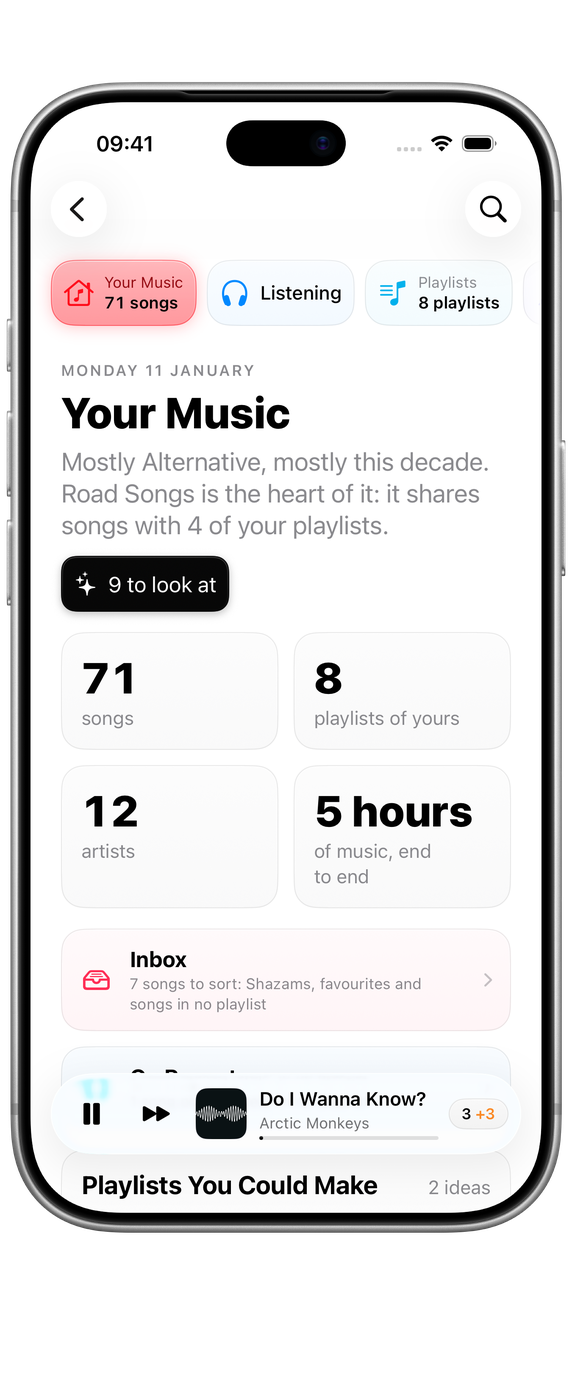
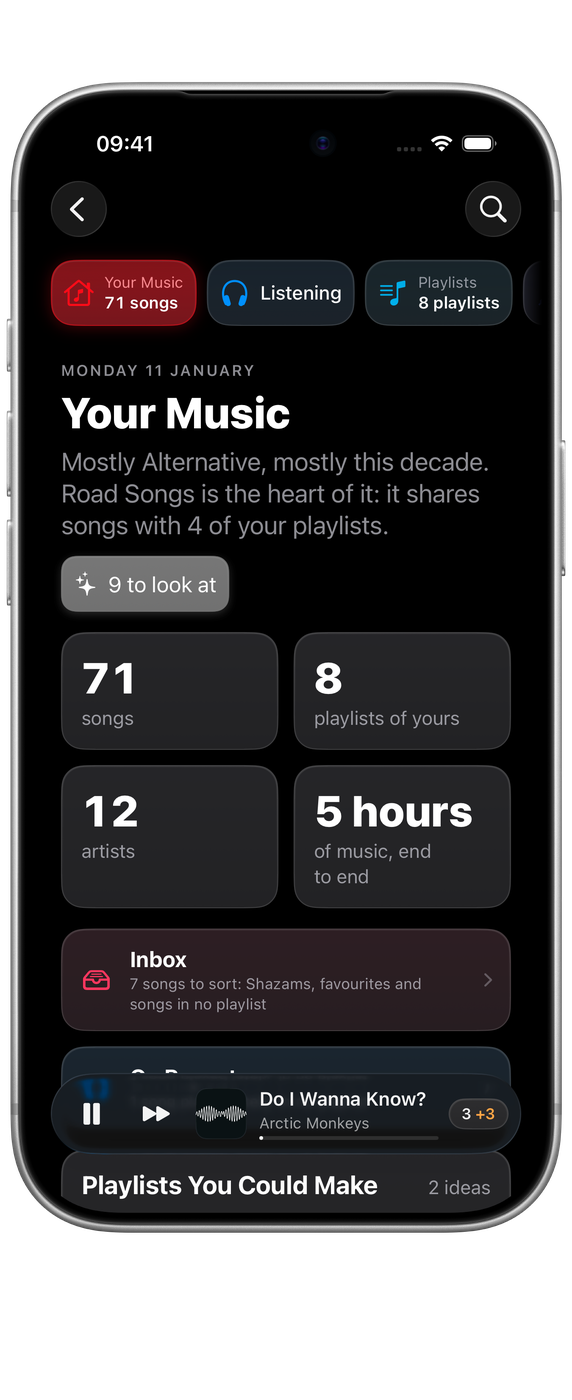
The sidebar on iPad and Mac, and the row of places at the top on iPhone, hold Medley’s places, each with its count. They are grouped by what you are doing.
Your library
- Your Music: your library at a glance, how your playlists connect, and ideas for what to do next. See Your Music, Artists and Playlists.
- Listening: your week in numbers, and what you play against your playlists. See Listening, Suggest Less and Grow.
- Playlists and Artists: every playlist and artist, and a page for each.
To Sort
- Inbox: Shazams, favourites and songs in no playlist, waiting to be filed. See The Inbox.
- Review: doubles, near-copies and playlists worth merging, one at a time. See Review.
- Not in Library: songs in your playlists that are not in your library, so Music’s Songs, Artists and Albums views never show them.
- Ideas: playlists you could make from songs you already have. See New playlists from your library.
Choose To Sort to fold it away. Folded, it shows how many things are waiting across all four.
History sits at the foot of the sidebar, beside Read Playlists Again and Settings. See History and Put Back.
Your playlists are listed below the places. Search, in the toolbar, finds any song and every playlist it is in. See Finding a song.
On a Mac, Medley shows one page at a time. Opening a playlist or an artist from a page adds a Back button; ⌘[ does the same.
Medley in the menu bar
On a Mac, Medley also sits in the menu bar, showing the song that’s playing and the playlists it’s in. Closing the window leaves it there. See Medley in the menu bar.
Playlists Medley leaves alone
Medley works with your own playlists. Playlists saved from Apple Music, such as Essentials and Replay, can’t be edited, so they are hidden and left out of overlaps and suggestions. Show them in the sidebar with Settings ▸ General ▸ Show playlists saved from Apple Music. Medley reads My Shazam Tracks for the Inbox, but does not count it as one of your playlists.
Where Medley opens
Settings ▸ General ▸ Opens To chooses between Your Music and Last Place, which reopens the page or playlist you were on.
Make it yours
Settings ▸ Appearance has the same themes, interface fonts and light and dark choices as the other Wells Code apps, with Darker Backgrounds on a Mac. Medley starts on Mono, which keeps its own black and white look. Theme and font stay on each device. See Appearance.