

The Inbox holds songs you meant to keep but never filed:
- Shazams: songs in Music’s My Shazam Tracks that aren’t in one of your playlists.
- Favourites: songs you starred that were never added to your library.
- In No Playlist: songs in your library that aren’t in any playlist of yours.
Use the filter at the top to show All, or one kind at a time. Shazams come first, newest first.
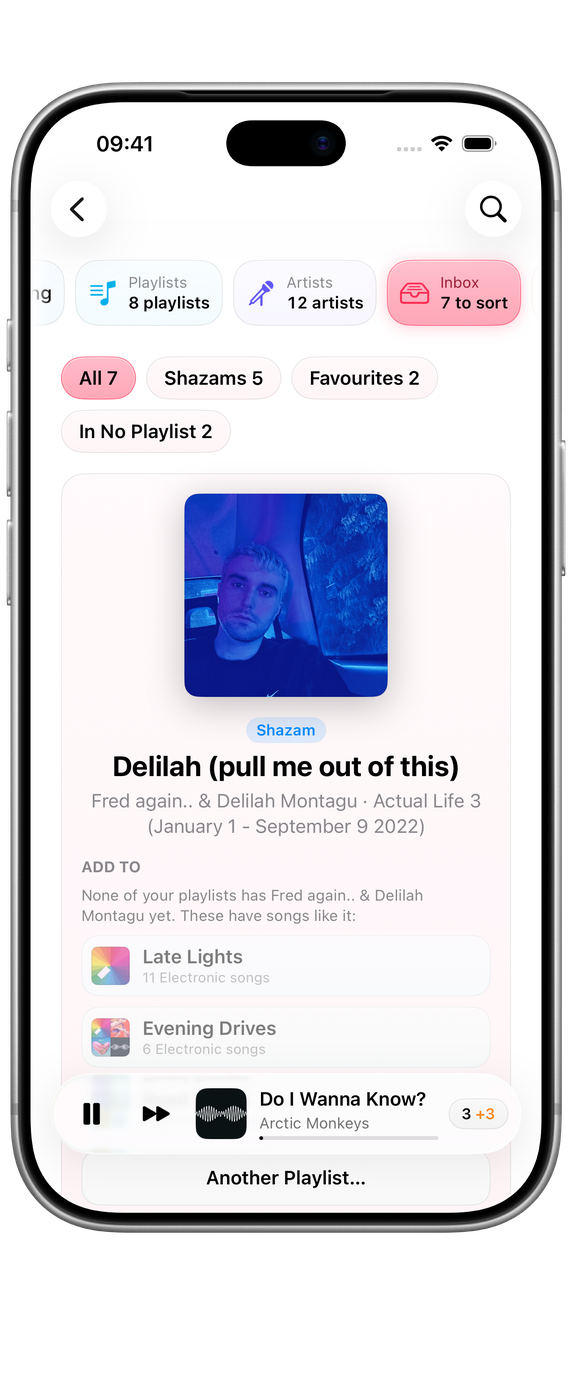
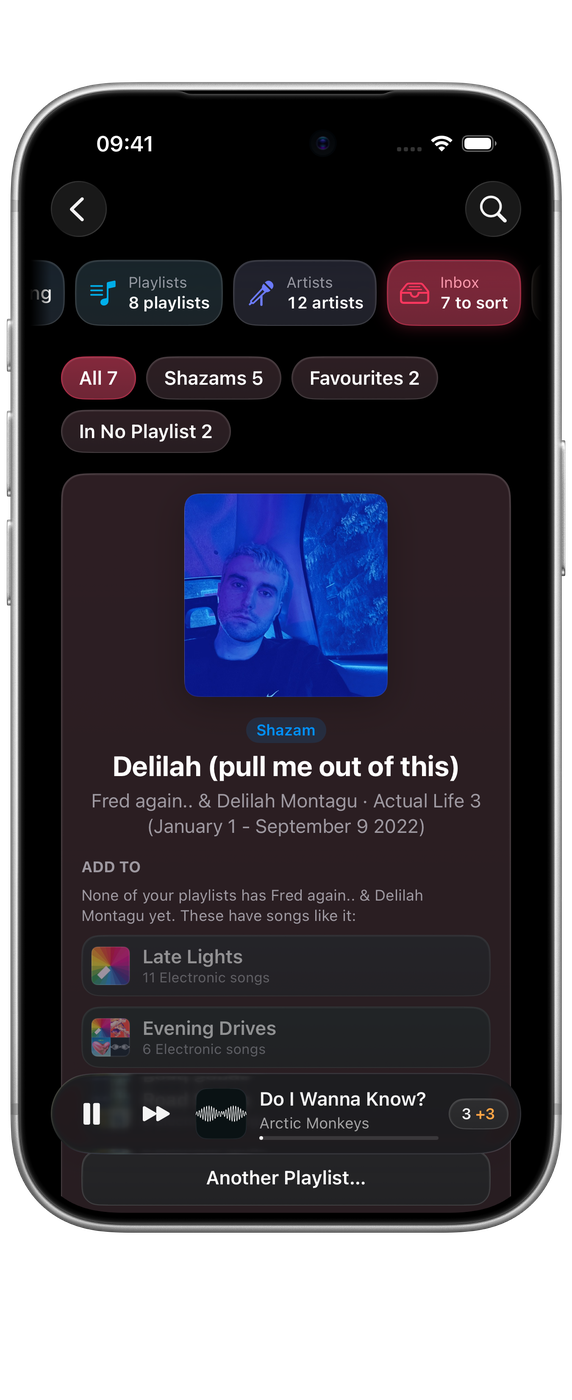

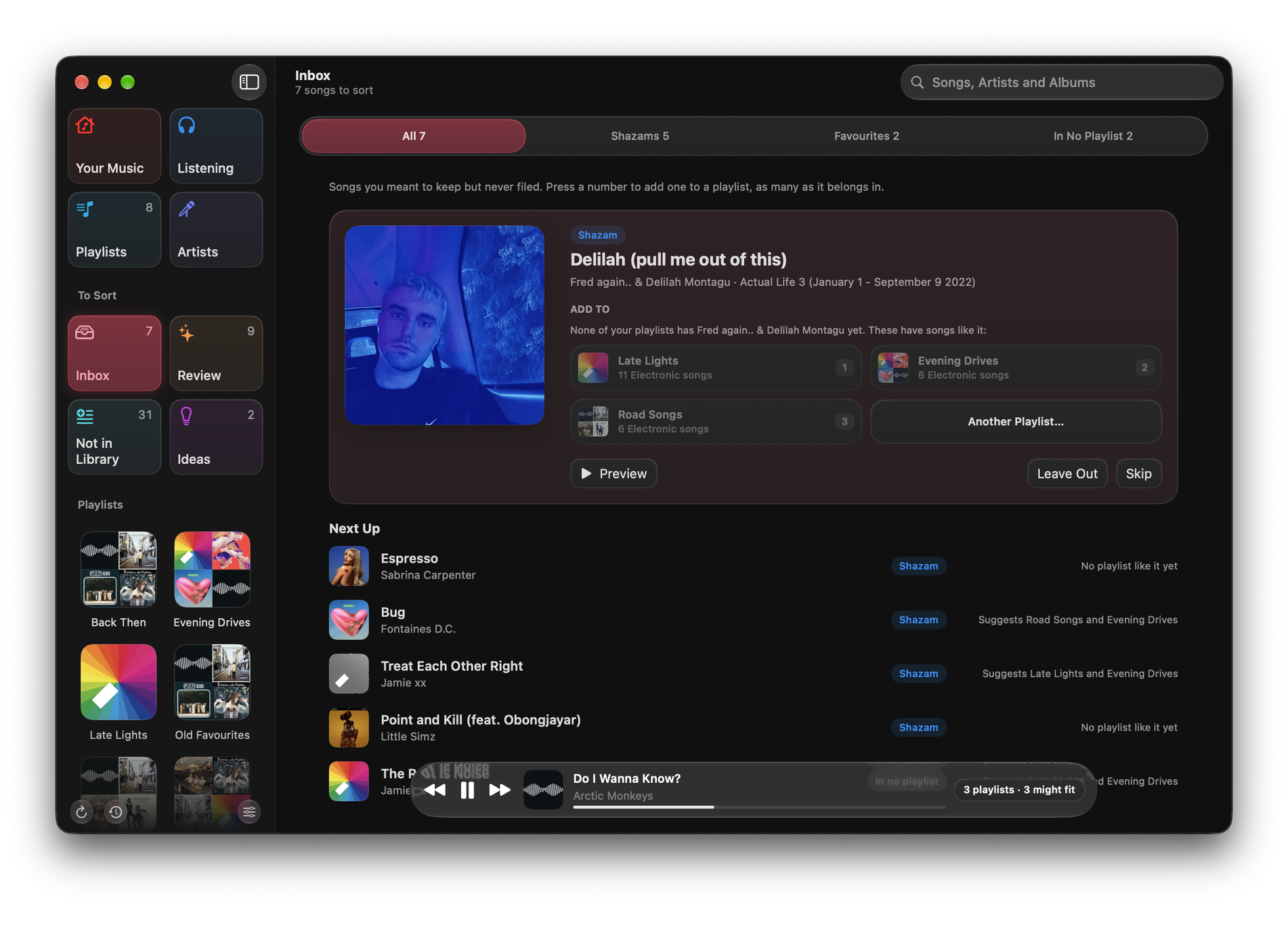
Filing a song
The Inbox shows one song at a time, with the playlists it would most likely suit. Medley suggests the playlists that already hold most of the artist’s other songs, or, for a new artist, the playlists richest in the song’s genre. Each suggestion says why, such as “4 songs by Paper Parade”.
Choose a playlist to add the song to it. A song can go in as many playlists as it belongs in: choose each one, then Next. If none of the suggestions fit, Another Playlist… lists all your playlists.
A filed song leaves the Inbox. Filing a Shazam adds it to your library first, then to the playlist.
The other choices
- Skip: move on and come back to this song later.
- Leave Out: take the song out of the Inbox for good, without changing anything in Music.
- Add to Library: add a Shazam or a favourite to your library without filing it.
- Preview: hear 30 seconds of the song. Music pauses while it plays, and carries on afterwards.
With a keyboard
On a Mac, or an iPad with a keyboard:
| Key | What it does |
|---|---|
| 1 to 9 | Add the song to that suggested playlist (on a Mac, press it again to take it back out) |
| Space | Play or stop the 30-second preview |
| → | Next song (Skip if you added it nowhere) |
| ⌫ | Leave Out |
| ⌘Z | Undo the last step |
Undo
After each step, the line that says what happened has an Undo button. Edit ▸ Undo and ⌘Z do the same.
- Undoing Leave Out brings the song back, on every device.
- Undoing a filing takes the song back out of that playlist. This works in Medley on your Mac. On iPhone and iPad, Apple doesn’t let apps take songs out of a playlist, so remove it in Music instead.
Every filing is saved to History first as well. See History and Put Back.
Songs you left out
Show Songs Left Out, at the end of the Inbox, brings them back. So does Settings ▸ Advanced ▸ Inbox Songs Left Out ▸ Bring Back. What you leave out syncs between your devices when iCloud Sync is on.
Elsewhere
The Inbox widget shows how many songs are waiting, and Siri answers “What’s in my Medley Inbox”. See Siri, Shortcuts and widgets.
To file a song while it plays, use Might fit in Now Playing, or the menu bar on a Mac. See Medley in the menu bar.