Made for iPhone, iPad, Mac and Apple TV
The YouTube channels you choose
Watchlist
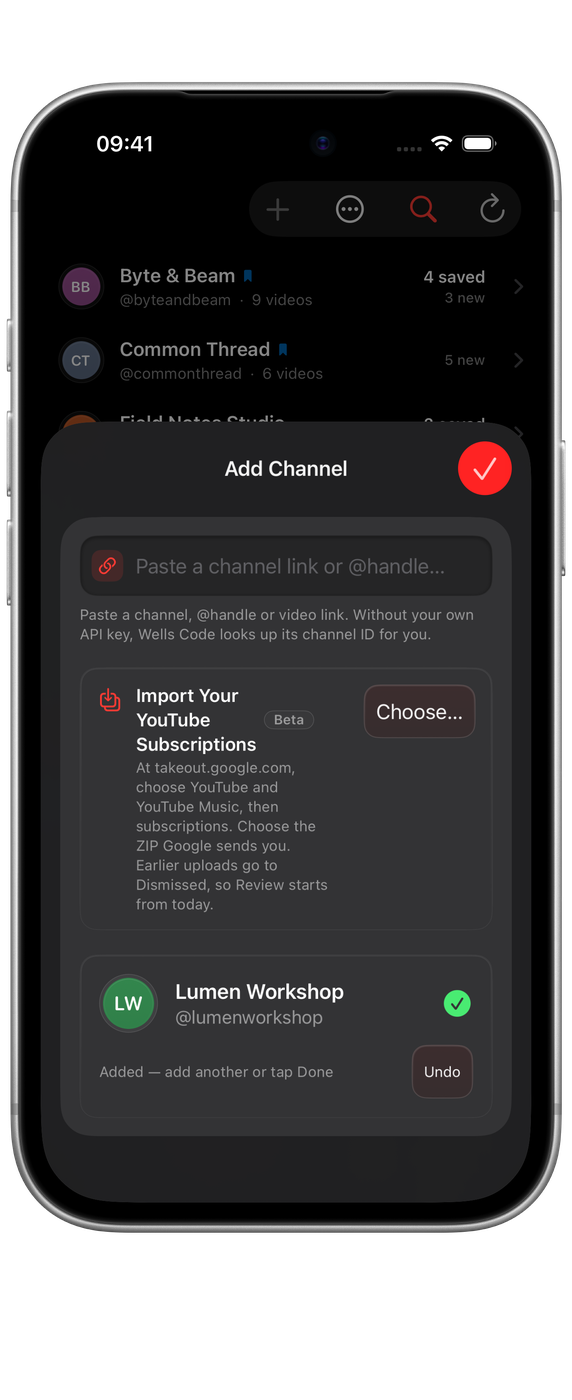
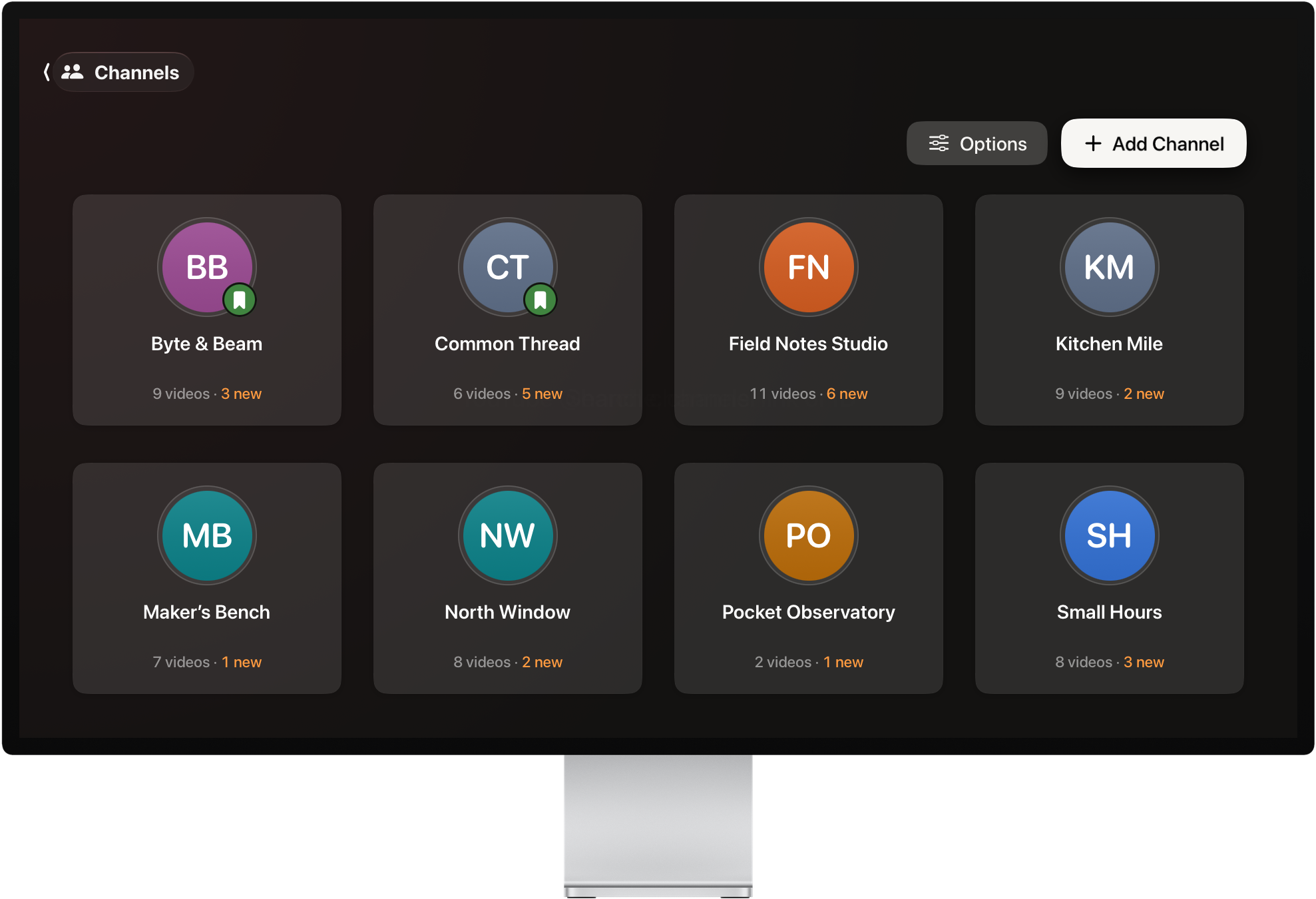
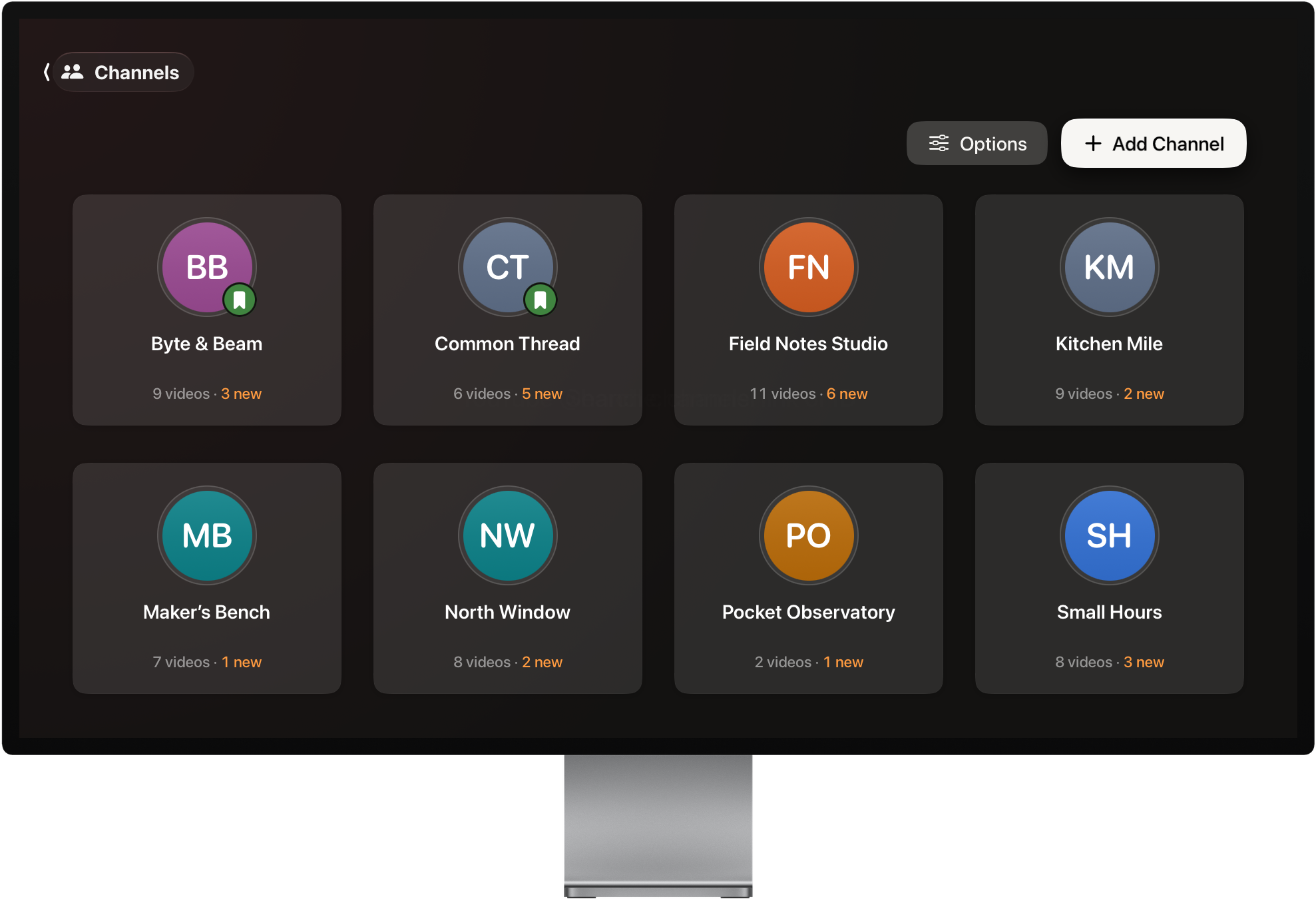
Follow the YouTube channels you care about. Review new uploads, save what matters and organise it into Collections, all without a Google sign-in or recommendation feed.
A look inside
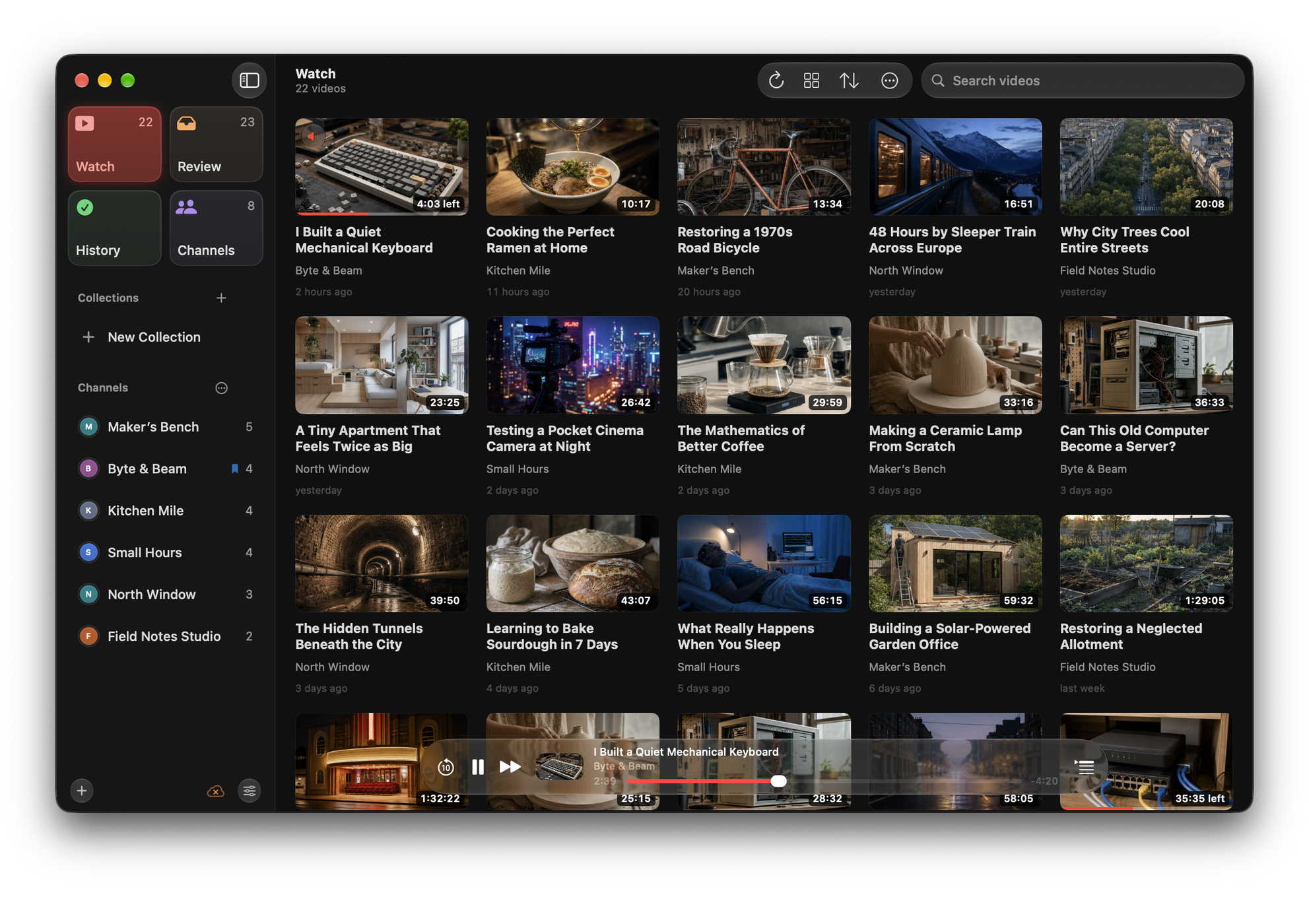
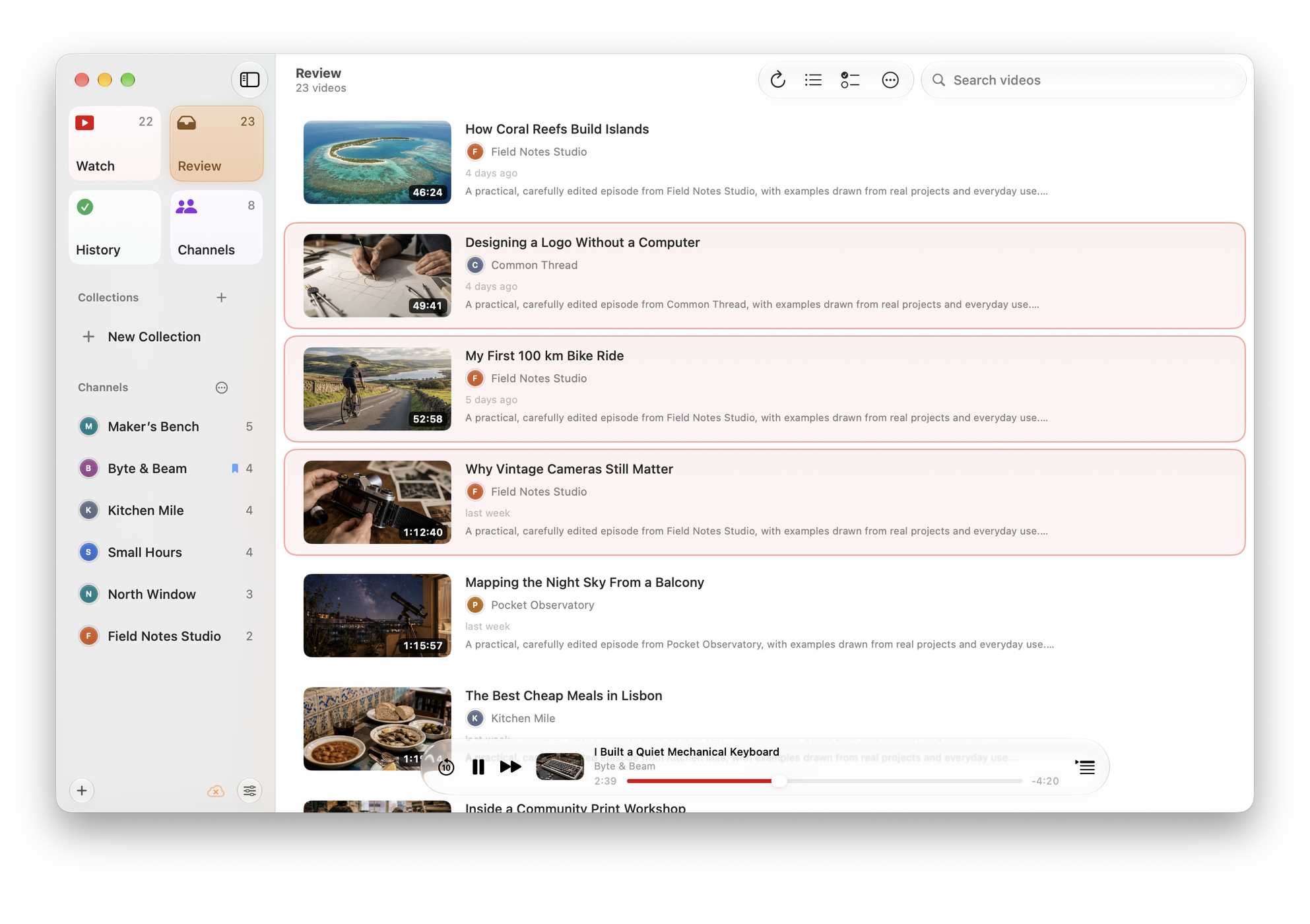
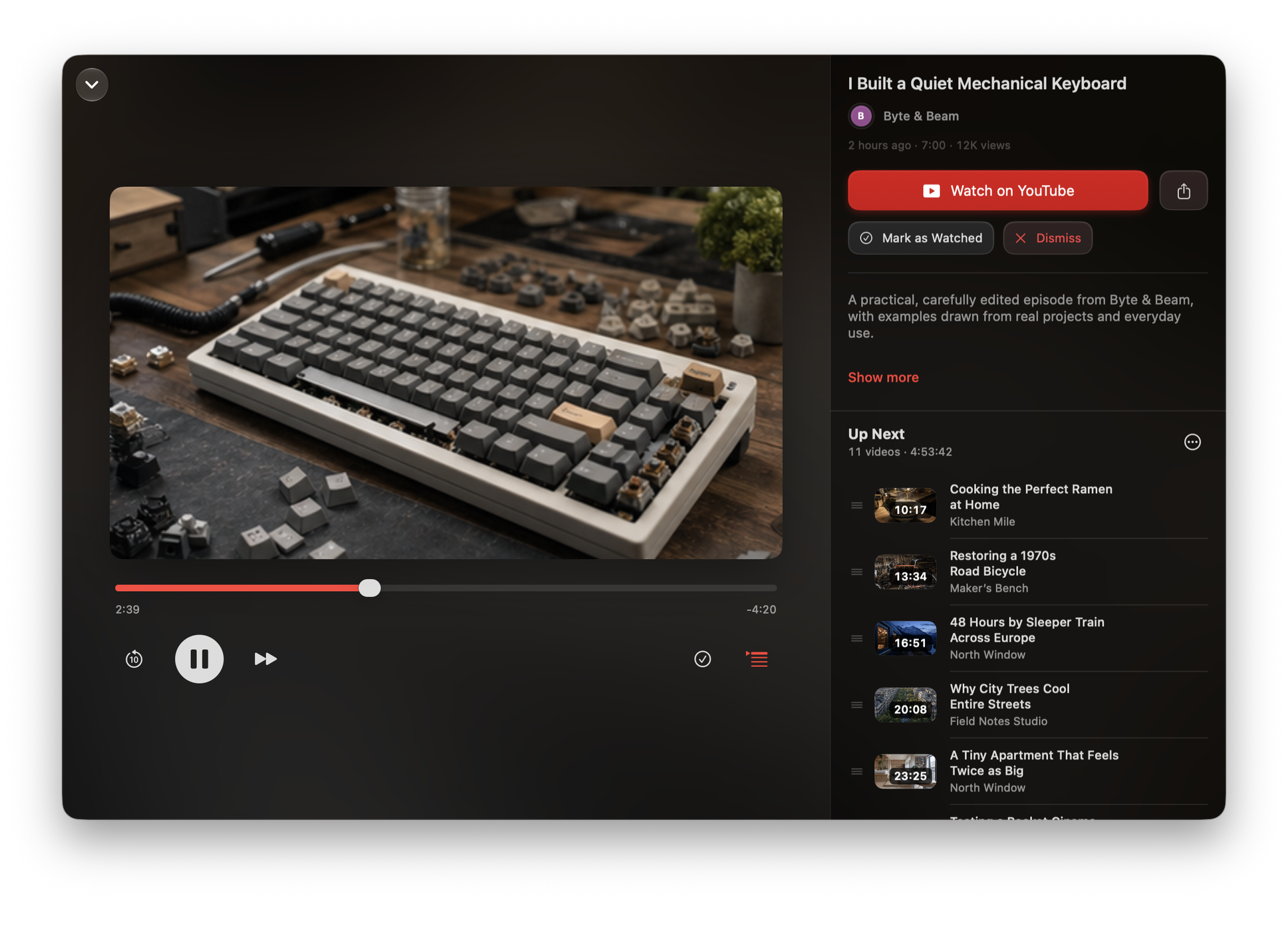
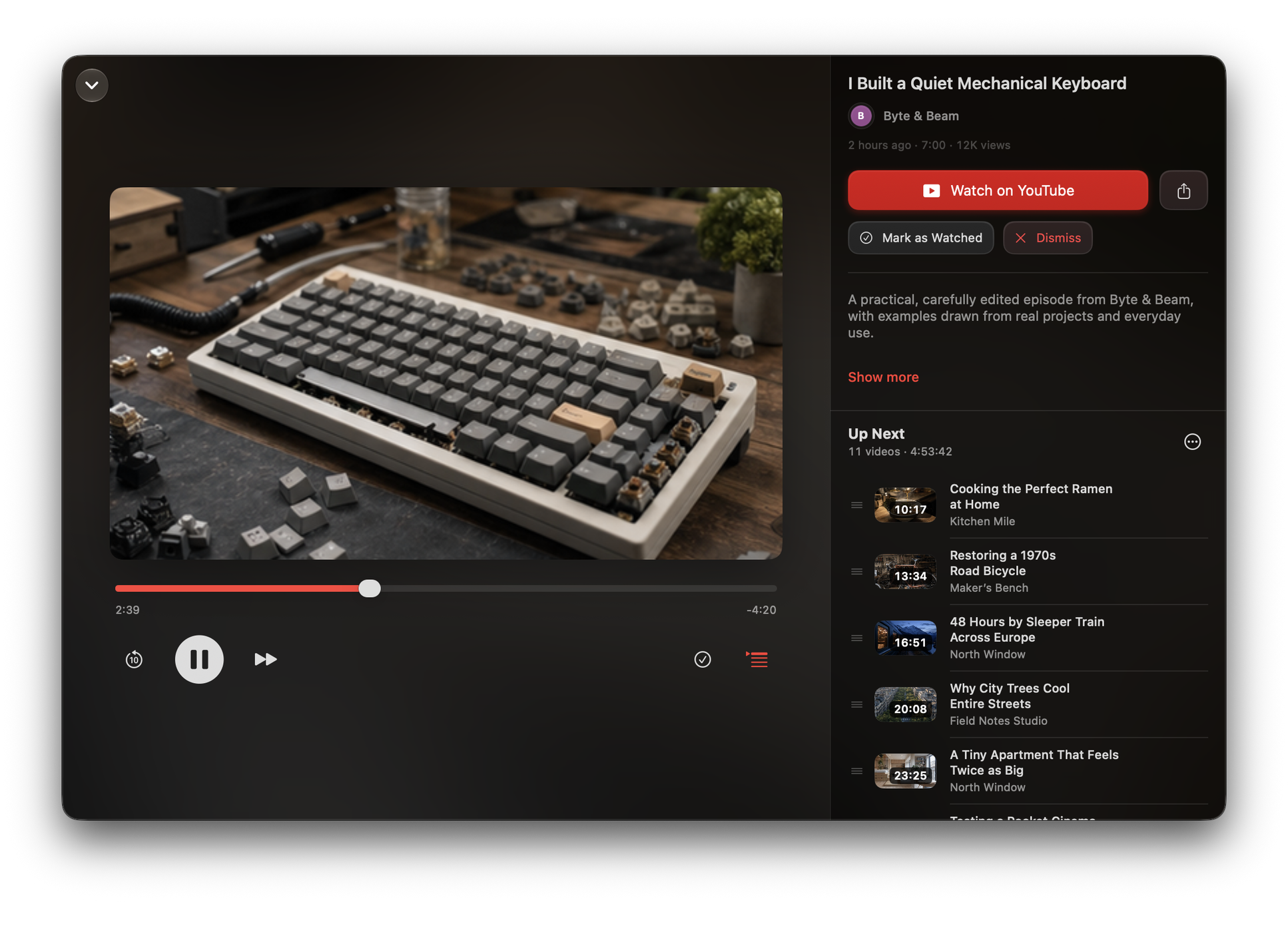
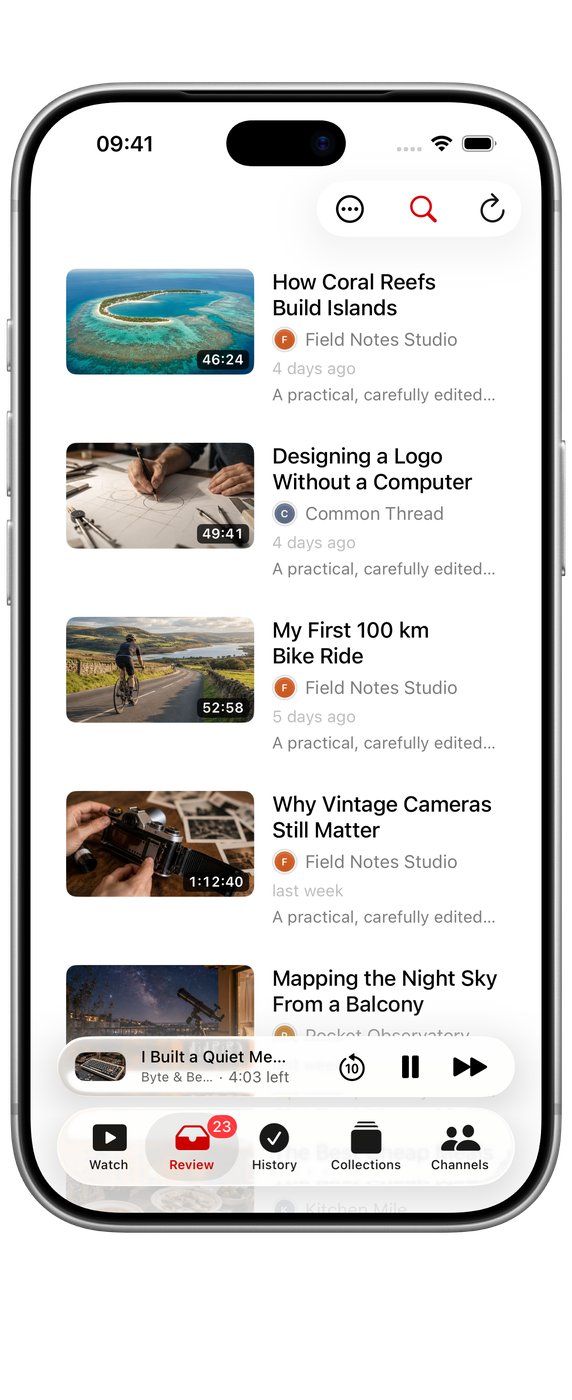
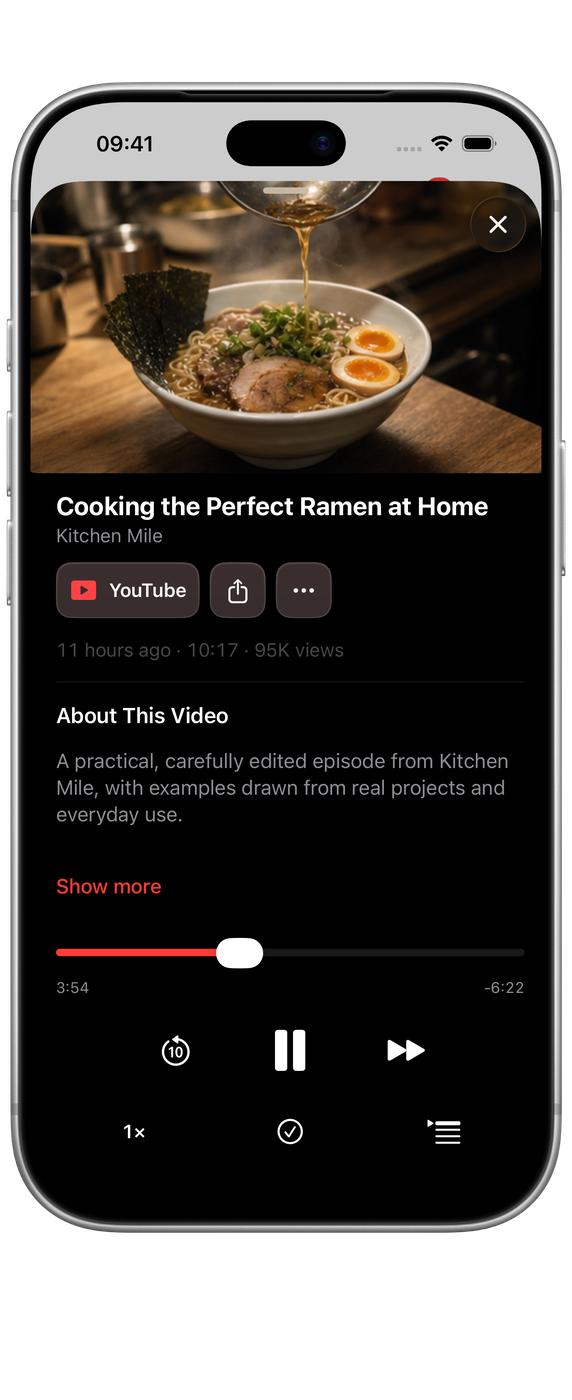
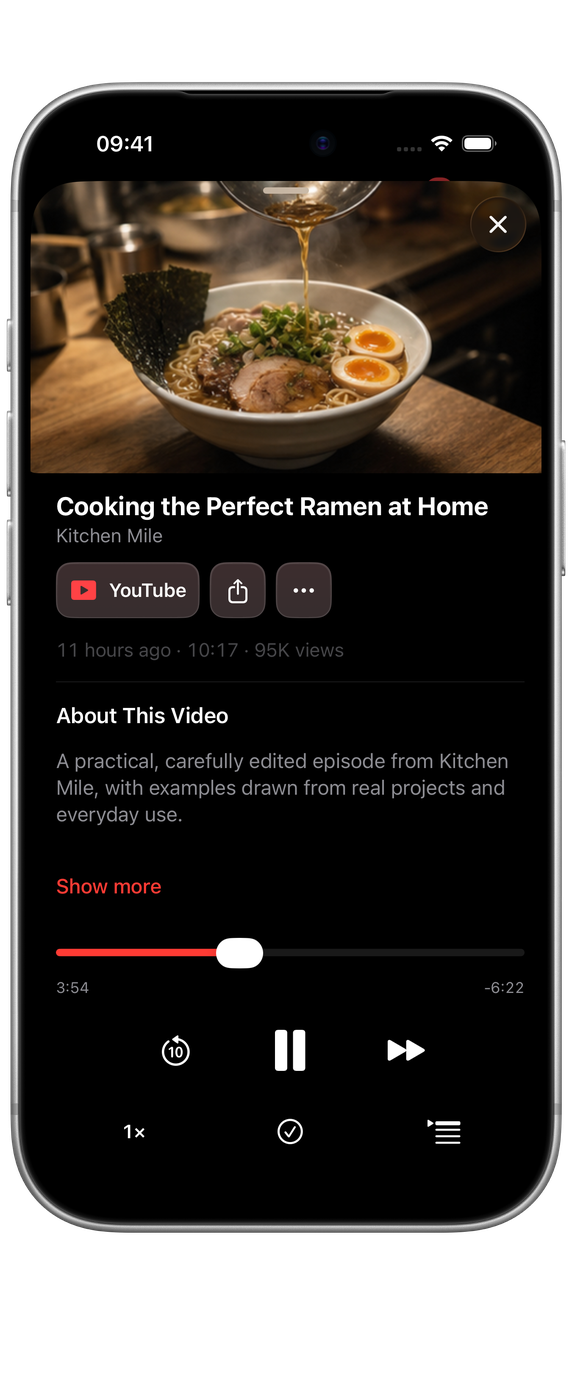
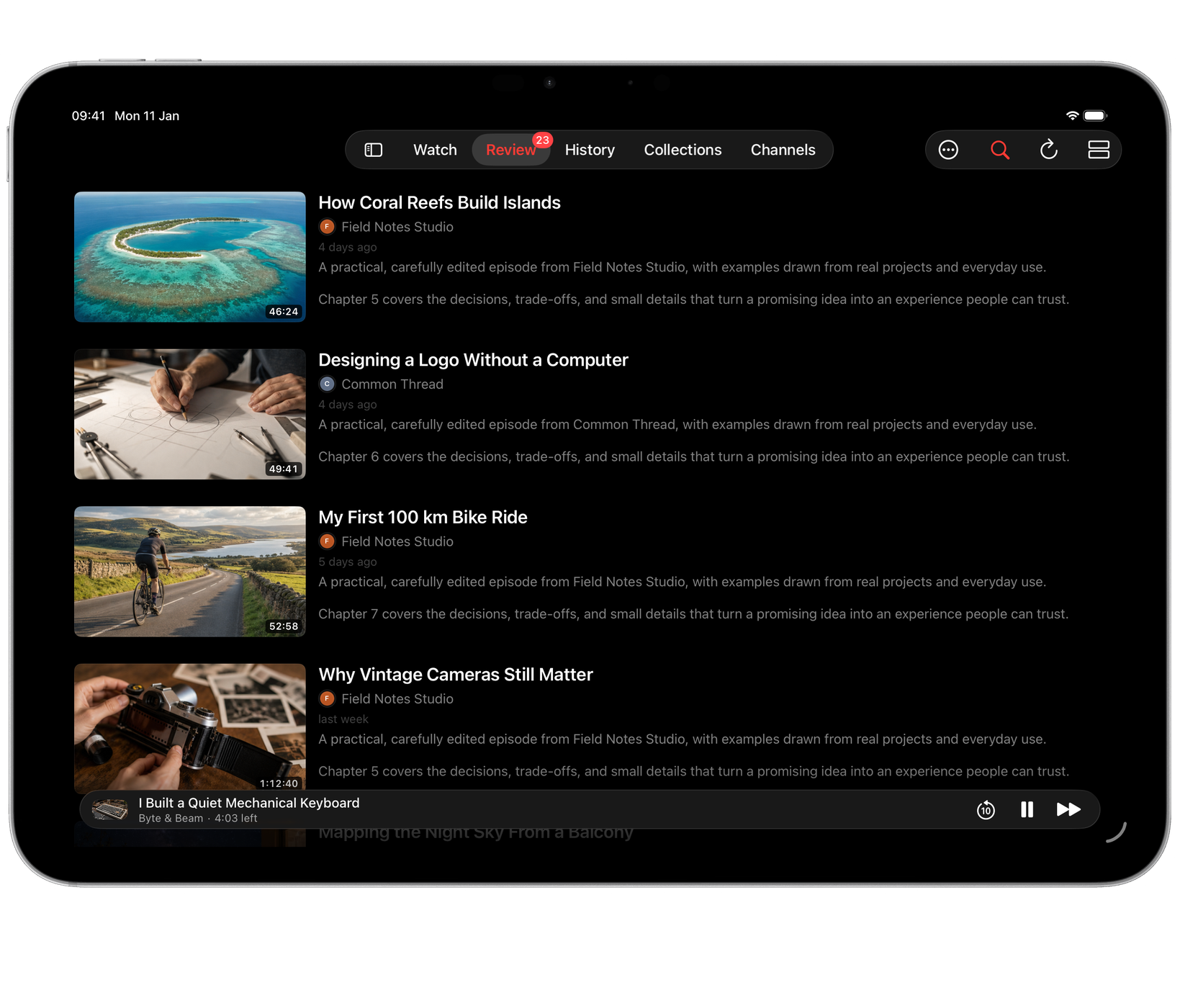
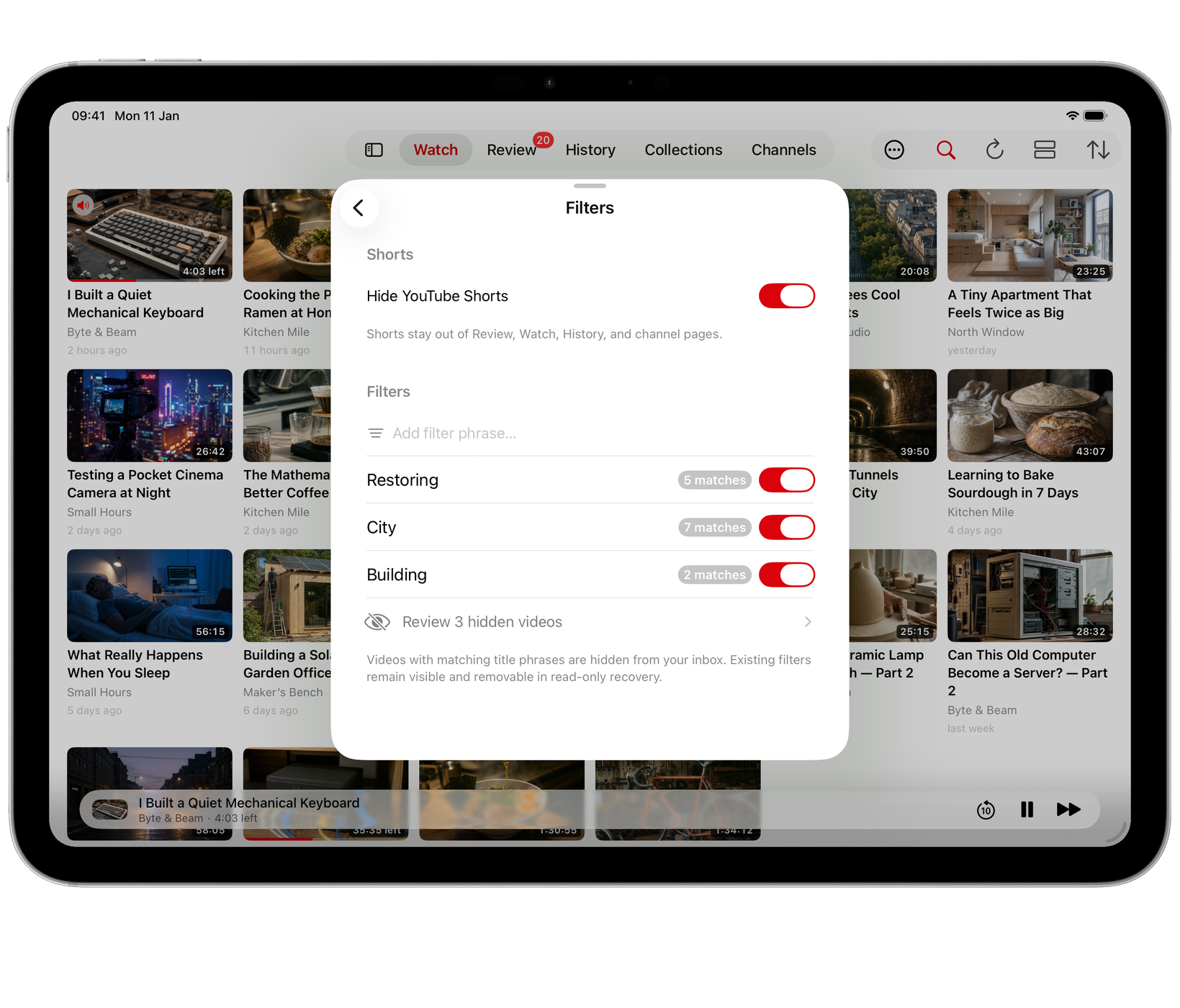
Watchlist in use.
Mac


iOS


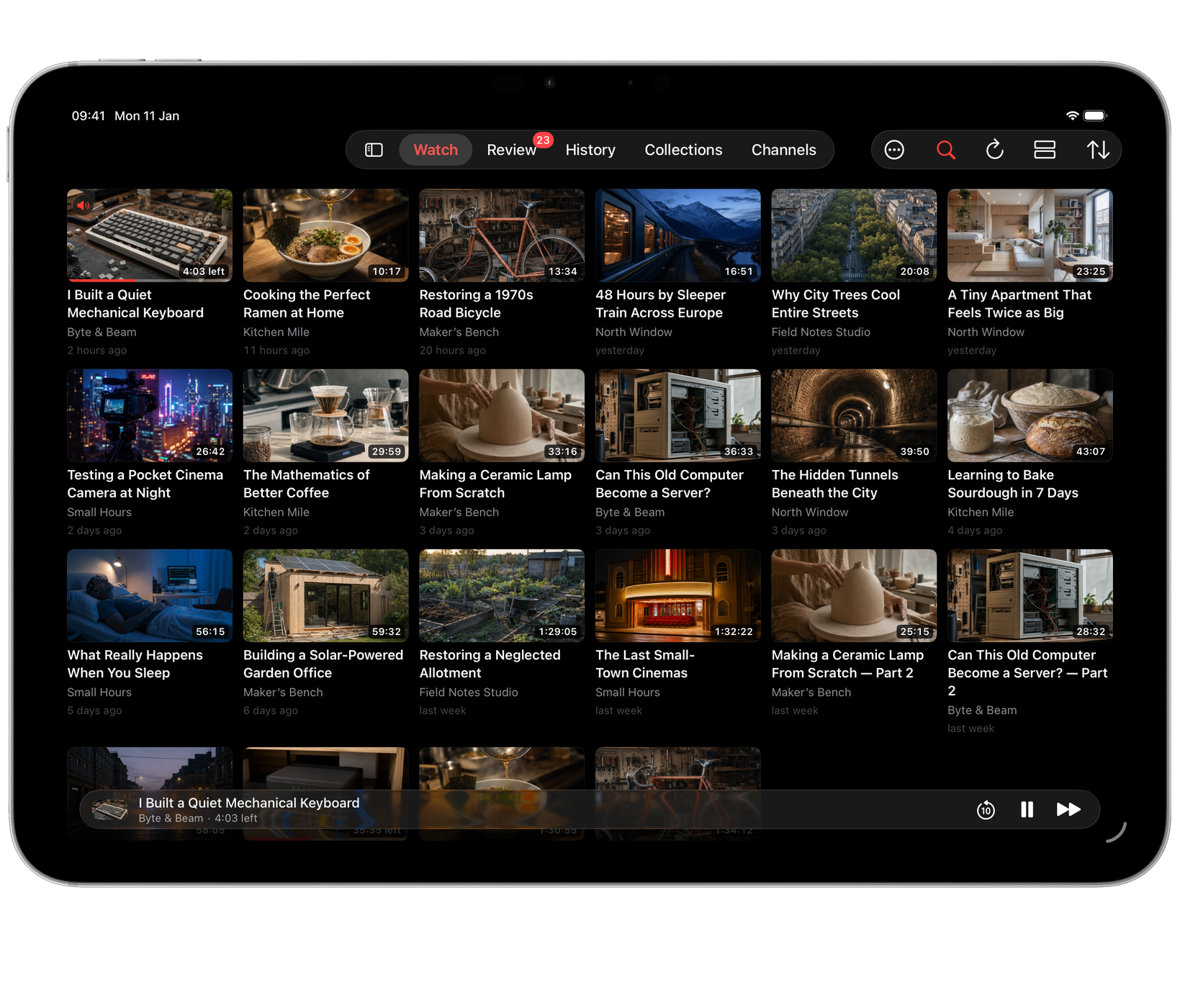



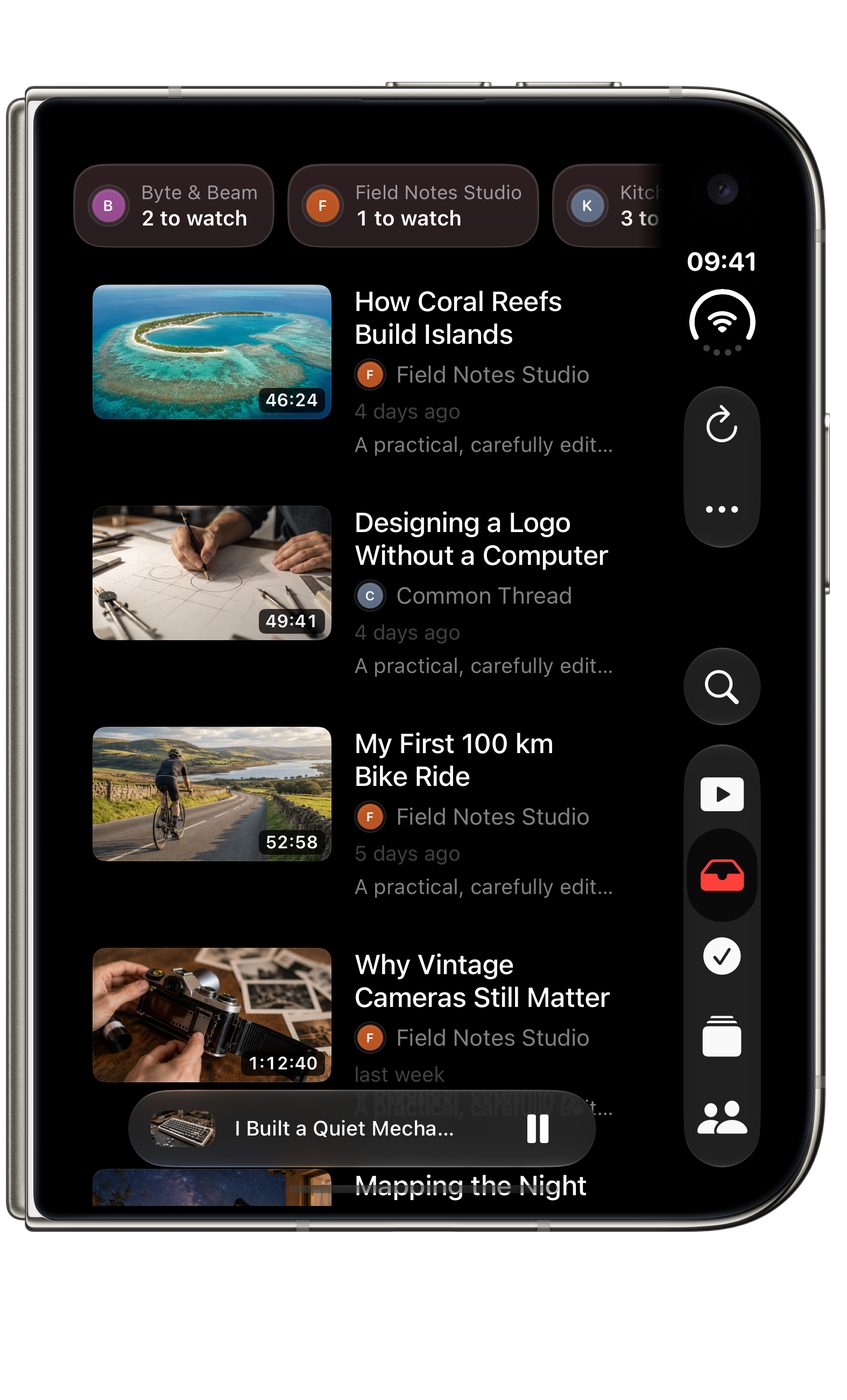
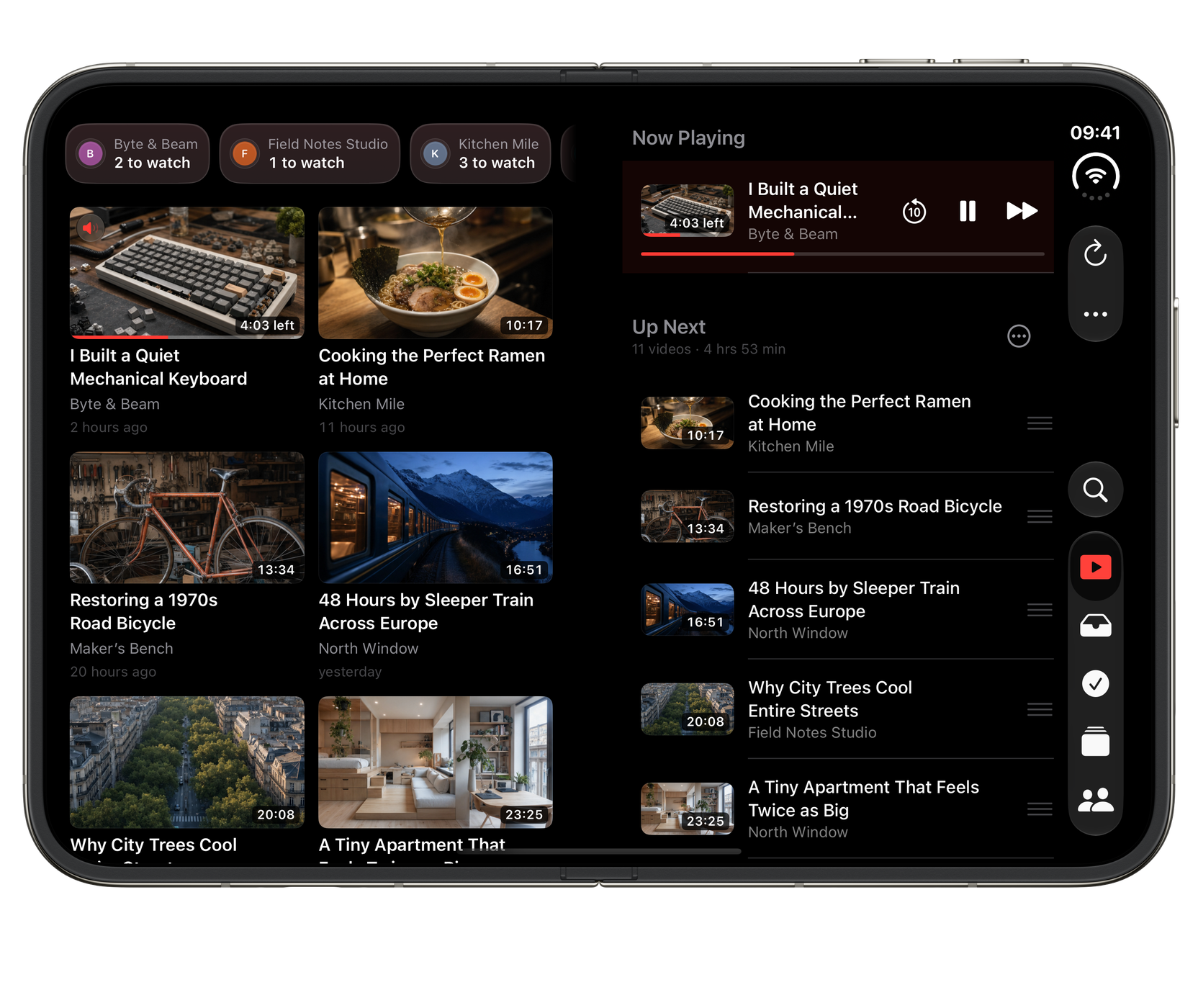
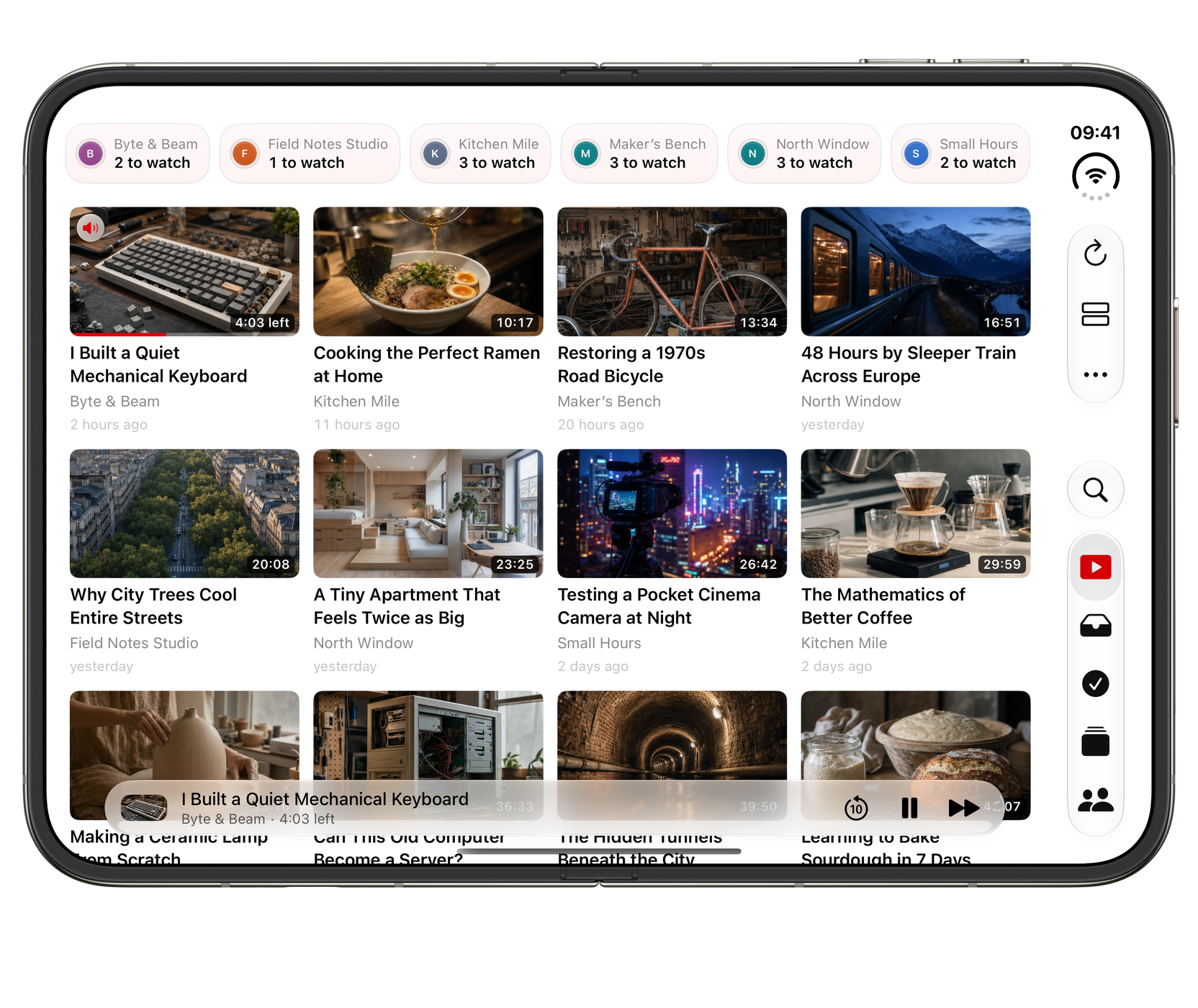
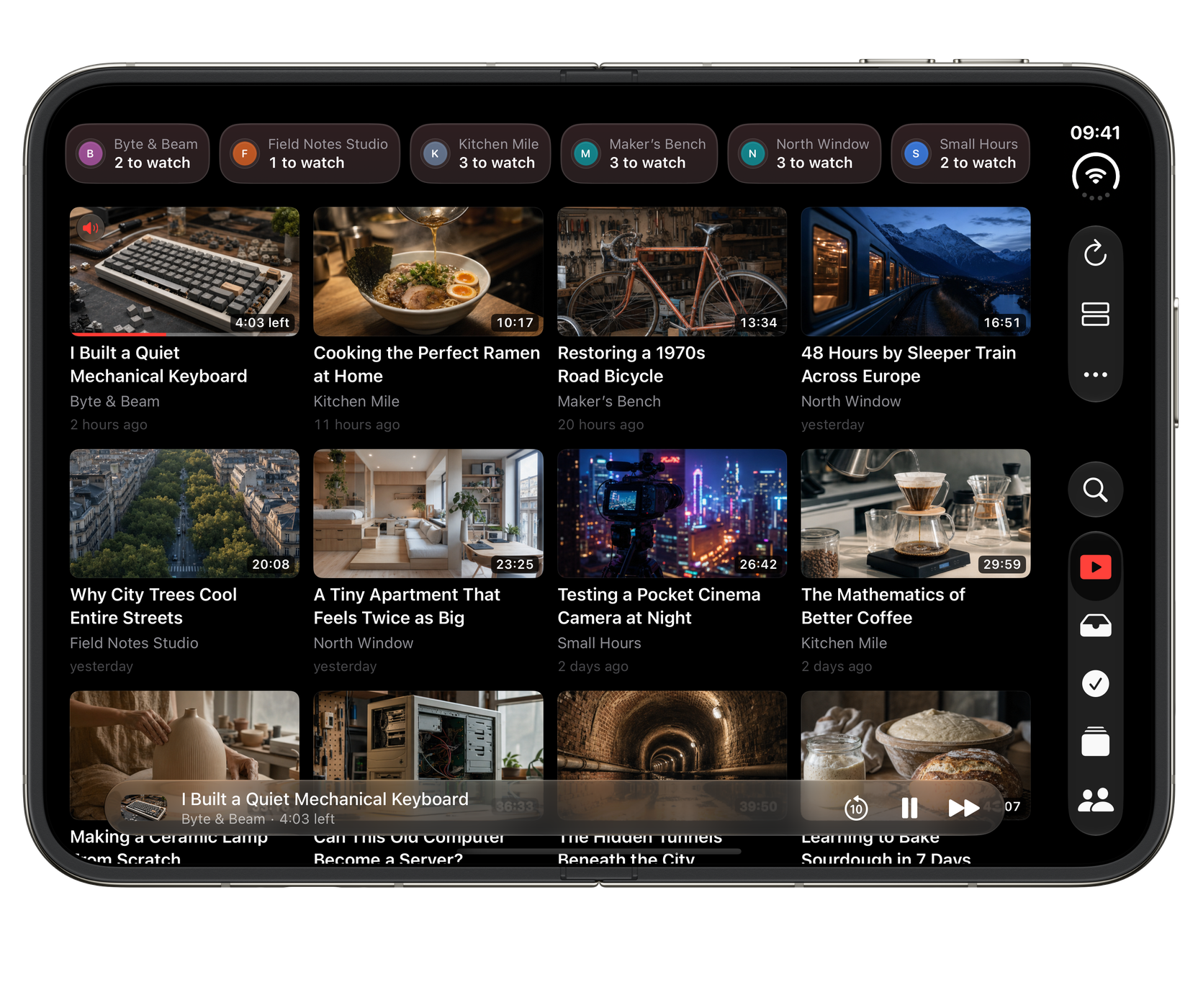
iPhone Duo
Ready for the outer display, the open canvas and the space in between.


Apple TV



Widgets
Your queue, without opening the app. See what’s next, how far you got and when the queue is clear, without inviting another feed into your day.


What it does
The channels, without the machine.
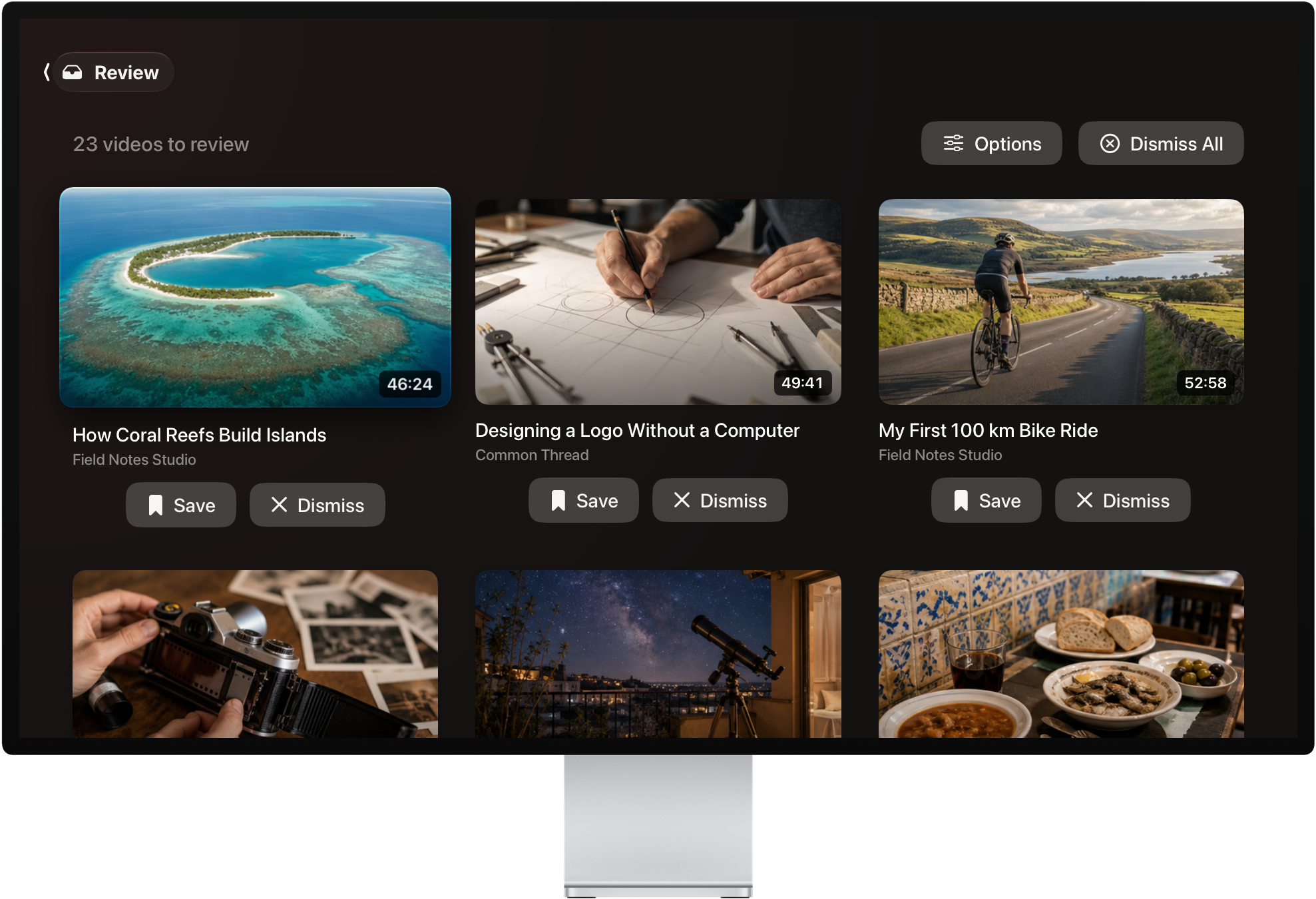
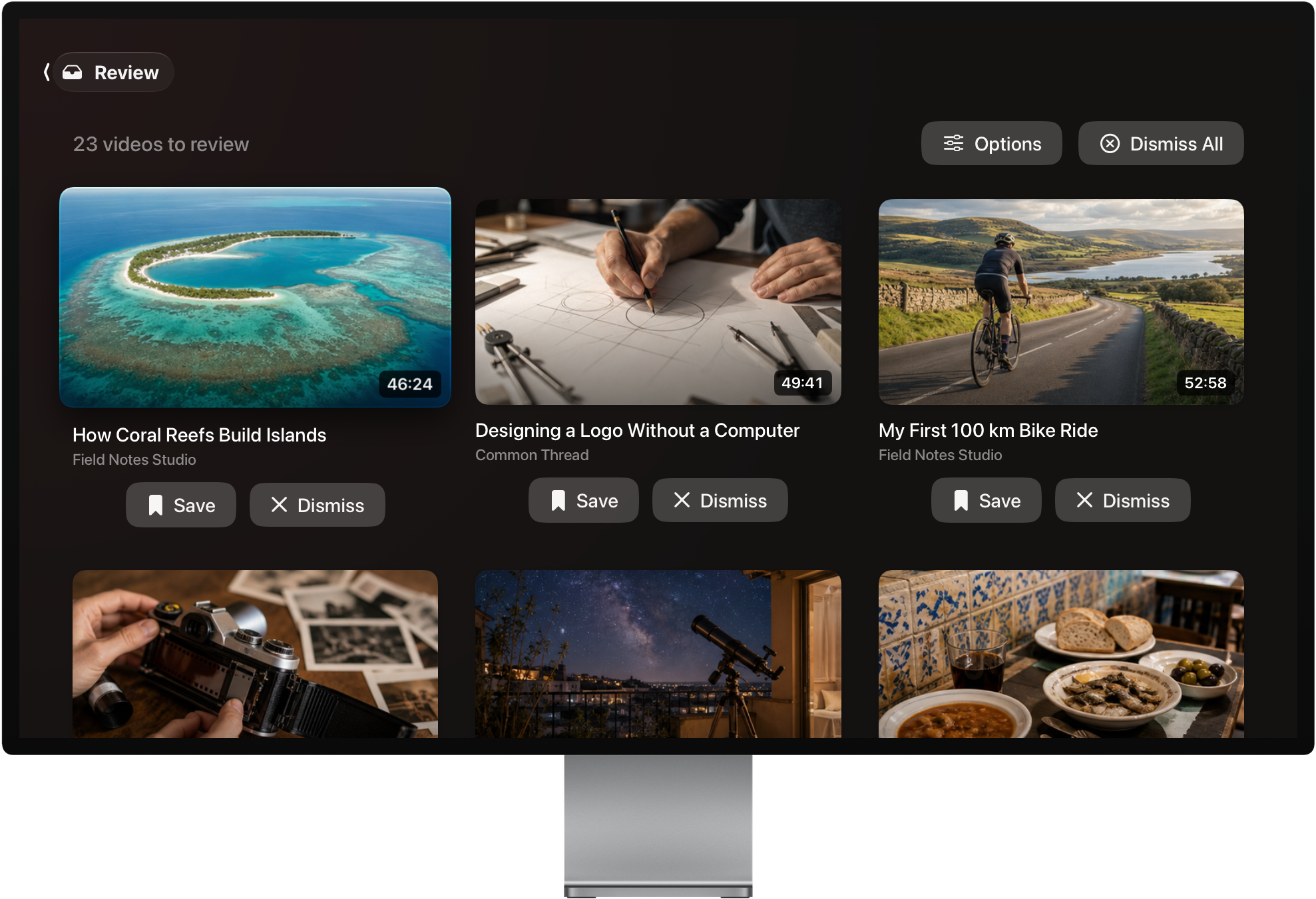
Review first, watch second
- Save
- Dismiss
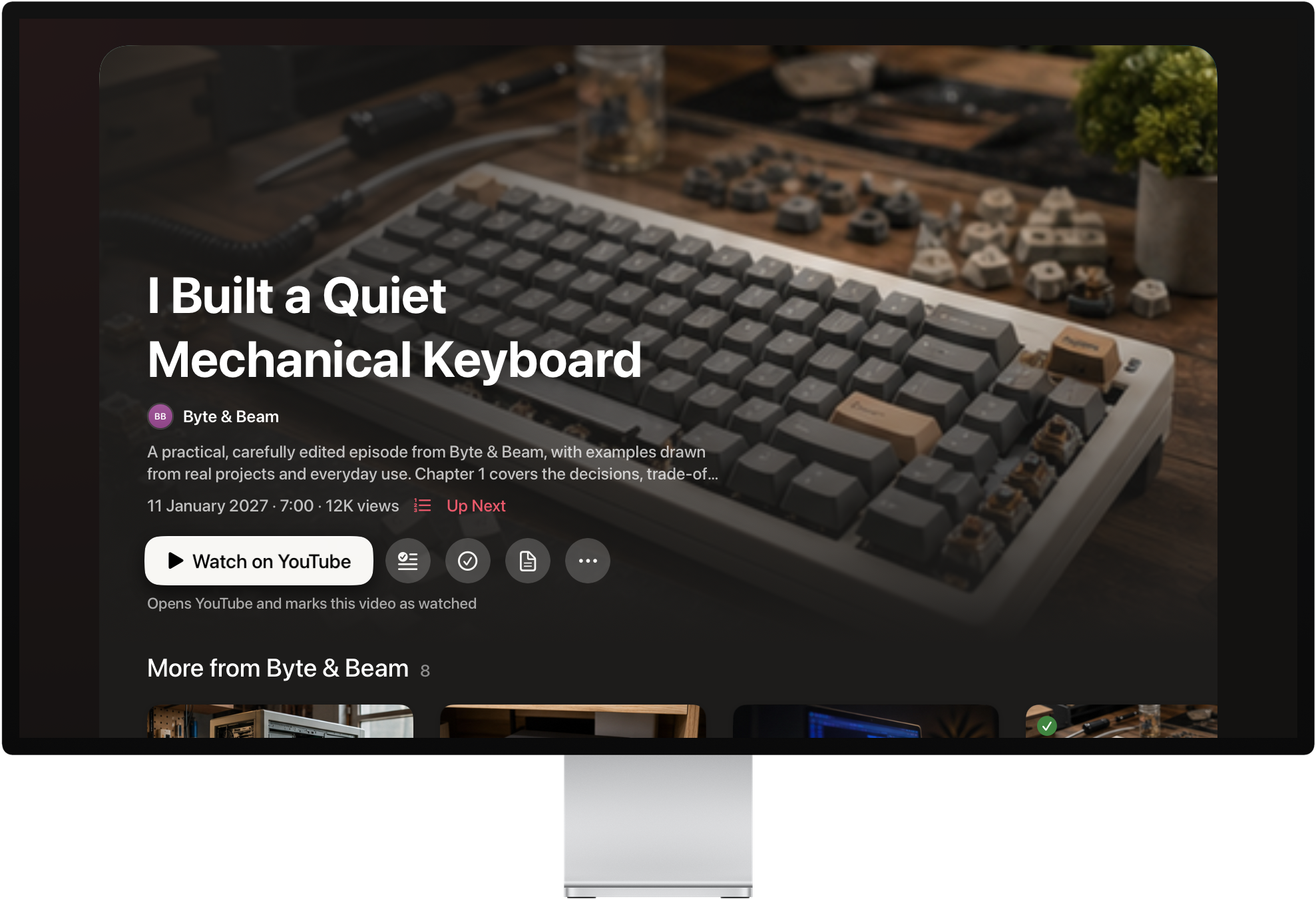
Every new upload lands in Review for a quick yes or no. Save what looks good, dismiss the rest. Nothing autoplays its way into your evening.
A keep-or-dismiss sweep
 18:42
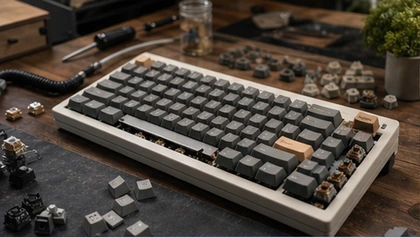
I Built a Quiet Mechanical Keyboard
Byte & Beam · 4 days ago
18:42
I Built a Quiet Mechanical Keyboard
Byte & Beam · 4 days ago
 12:07
Cooking the Perfect Ramen at Home
Kitchen Mile · 4 days ago
12:07
Cooking the Perfect Ramen at Home
Kitchen Mile · 4 days ago
 24:51
Restoring a 1970s Road Bicycle
Maker’s Bench · 5 days ago
24:51
Restoring a 1970s Road Bicycle
Maker’s Bench · 5 days ago
Bouncers on the door
Hide uploads by title phrase, and keep Shorts out entirely with one switch.
No algorithm
Channels arrive over their public feeds, with no Google sign-in or recommendation feed.
List, table or grid
Every destination keeps its own layout, so Review can stay dense while Watch stays visual.
Now Playing everywhere
2:39-4:20
Widgets and Control Centre controls
On the Home Screen
A queue that behaves
Up Next with drag reordering and a mini player that follows you around the app.
In step on every device
Channels, queues and watch state stay in sync across iPhone, iPad and Mac through iCloud.
Drivable from the keyboard
…and many more, on Mac and on iPad with a keyboard.
Collections
A place for every interest.
Keep recipes, long interviews or your next project together. Give each collection a name and icon, then file videos from any channel. A video can belong in more than one collection.
- Choose videos yourself. Add them to a collection as you browse; filing a video from Review also saves it to Watch.
- Let channels file new uploads. Link the channels that fit. Their new videos arrive in the collection’s Review section, ready for your decision.
- Watch by interest. Start with the collection’s saved videos, or add them all to Up Next.
Your collections live in Watchlist. They do not change your YouTube account, and deleting a collection leaves its videos in your library.
Siri and Shortcuts
The queue, one phrase away.
Watchlist's queue and playback actions work from Siri, the Shortcuts app and Control Centre, so refreshing before a commute or starting the next video is a single step.
-
 Siri
Siri
-
 Shortcuts
- Refresh channels. Check for new uploads before you sit down to watch. Playback needs an internet connection.
- Control playback. Play, pause and skip without the app in front of you.
- Clear a backlog. Find videos, then mark them watched in bulk.
Twelve actions in all, plus the Up Next widget and four Control Centre controls.
Why it exists
For people who like the creators, not the machine.
Following a handful of channels shouldn’t mean taking on an endless feed and recommendations you never asked for. Watchlist keeps the channels and leaves the rest.
It is made for people who want to keep watching what they value and stop losing hours to what they do not.
Support and contact · Version history · Privacy
Questions
A few useful answers.
Do I need a Google account or API key?
Neither is required to follow channels. An optional API key adds details such as durations and view counts. Limited channel-lookup and playback checks are explained in Watchlist’s data guide.
Why does a video offer Open in YouTube?
Watchlist checks whether YouTube permits in-app playback. If the check cannot approve it, open the original on YouTube. Playback help covers connection issues and unavailable videos.
Can I organise videos into my own collections?
Yes. Create a named collection, file videos into it, and optionally link channels so new uploads are filed automatically. One video can belong to several collections. These are groups in your Watchlist library, not YouTube playlists. See Collections help for the steps.
Can I watch my queue offline?
Watchlist saves your queue, not video or audio files. Playback needs an internet connection. On iPhone, layout and sorting controls are under More ▸ View and Sort.
The rest of the family