

Music keeps a running count of how often you play each song, but never shows you your week. Medley does, and sets what you play against your playlists.
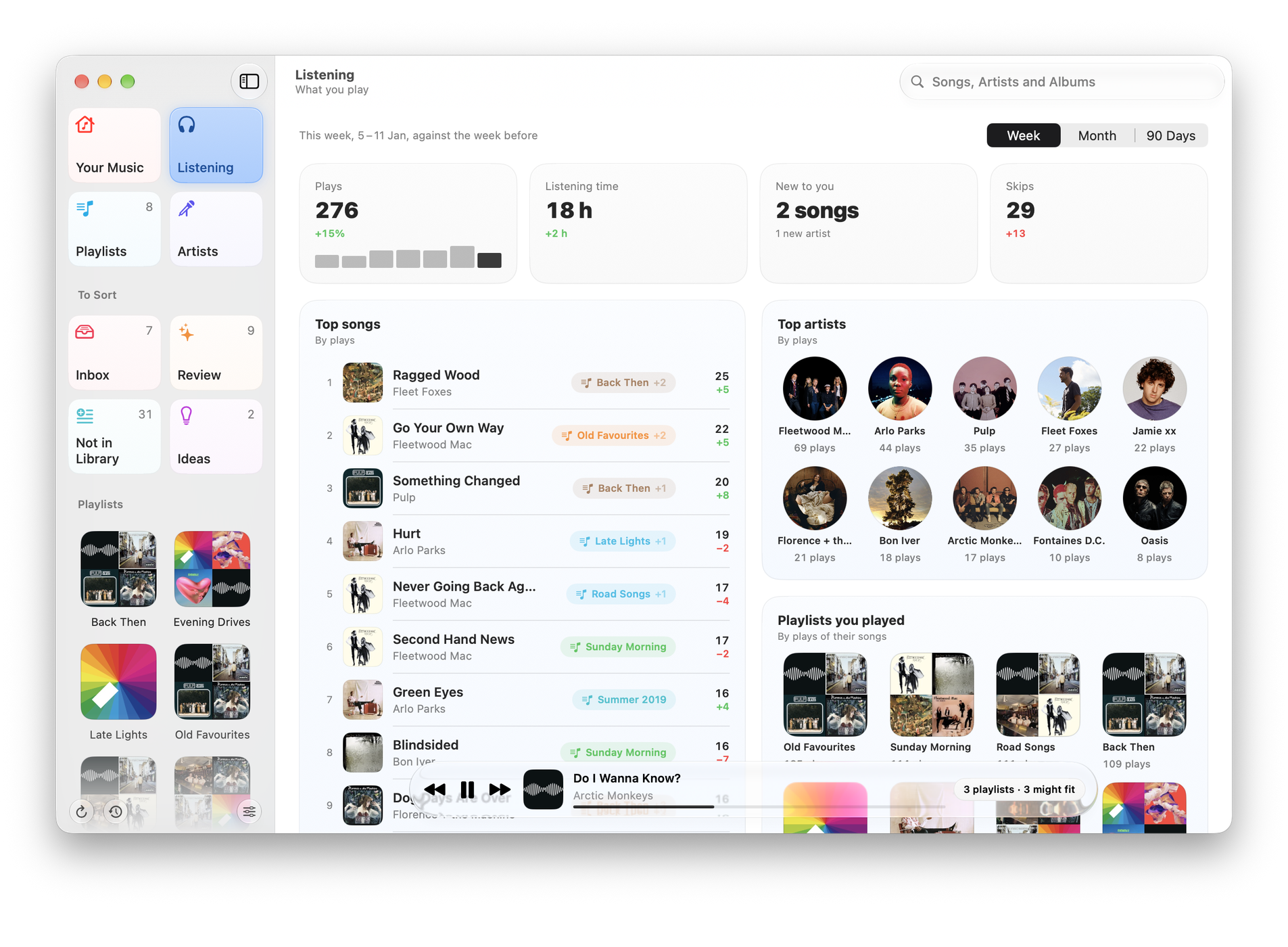

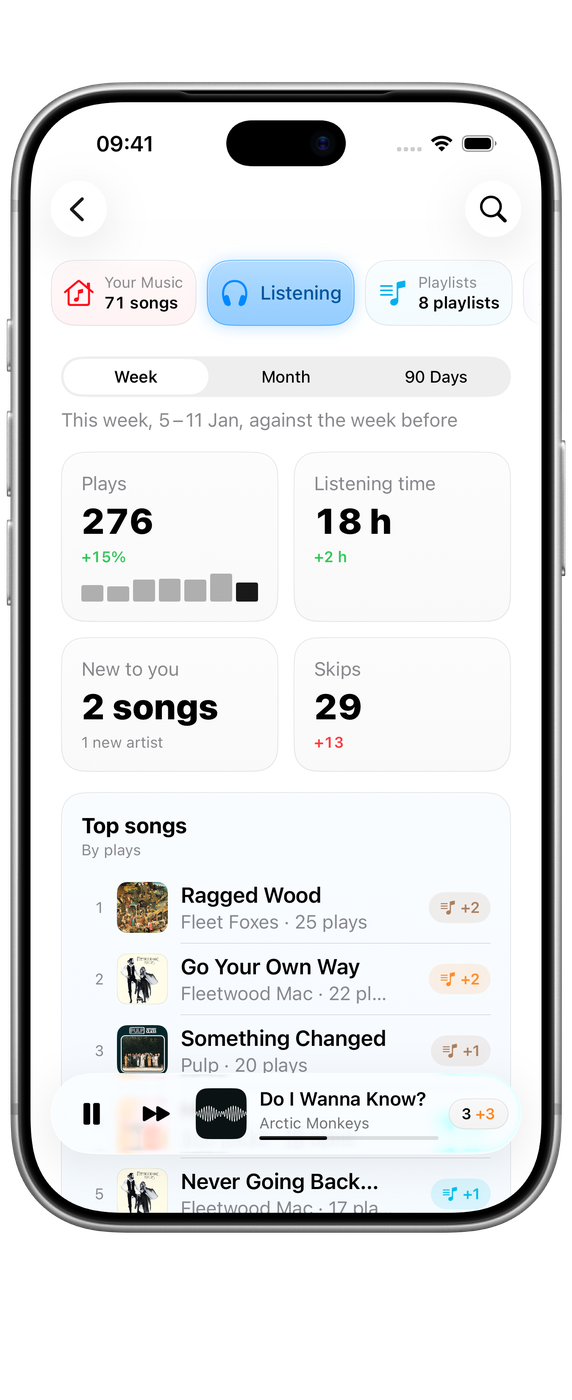
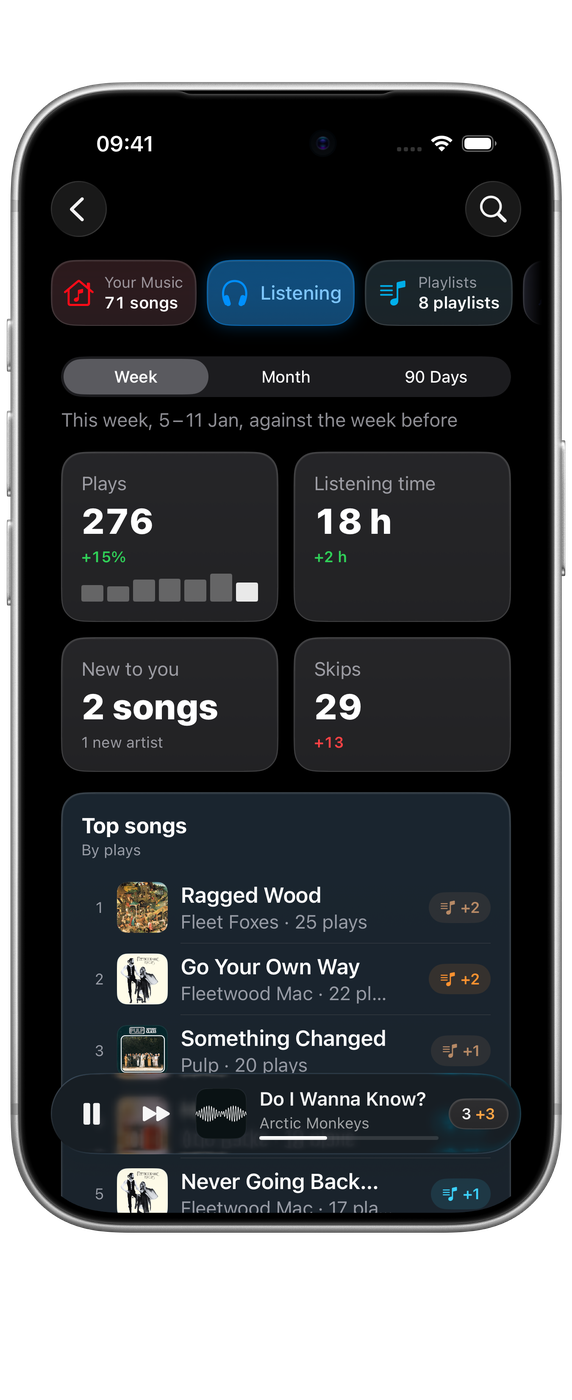
Your week in numbers
The top of Listening shows a Week, Month or 90 Days of your listening:
- songs, artists and playlists played
- plays, listening time and skips
- songs that were new to you
Once Medley has counted for long enough, each number is compared with the period before.
Below them:
- Top songs and Top artists, by plays.
- Playlists you played, by plays of their songs.
How Medley counts
Music only keeps a total for each song, so Medley notes the totals each time it reads your library and keeps the difference, day by day. It starts counting the first time it reads your library, or from the oldest copy in History if that is earlier, and keeps the count for good on your device.
Until there is enough to count, Listening says when it started and how many days are left. Top songs and artists then show what you’ve played lately, by plays of all time.
Medley sees new plays when it reads your library, so plays from days it wasn’t opened land on the day Music says the song was last played. A week’s total is right; a single day can bunch up.
To sort from your listening
On repeat, in no playlist. Songs you’ve played in the last 45 days that aren’t in any playlist of yours, most played first. Each has Add to… to put it straight into a playlist. When you’ve had enough songs by one artist on repeat, Medley offers Make a Playlist of them, named after the artist, which you can rename in Music.
Played lately, not yours yet. What Apple Music says you’ve played lately, on any device, that isn’t in your playlists. Songs not in your library say so, and can be heard for 30 seconds and added to your library and a playlist in one step.
Gone quiet. Your playlists ordered by the last time Music saw any of their songs played, for playlists you might have forgotten. Choose Play to put one on.
After adding a song, the line that says what happened has Undo, which takes it back out of the playlist on a Mac.
Favourites and Suggest Less
Medley uses Music’s own marks, so they are the same in Music and Apple Music everywhere:
- Favourite stars a song (Music’s Favourite, once called Love). The star changes at once in Medley, and goes back if Music refuses.
- Suggest Less tells Apple Music to suggest less like it in its stations and mixes. Marking a song Suggest Less takes its Favourite star off. Stop Suggesting Less clears it.
When you mark a song Suggest Less from a playlist and it’s still in your playlists, Medley says where. On a Mac you can then Take It Out of them; or choose Keep It.
Skipped songs in Review can be marked Suggest Less in a batch.
Grow
Grow finds songs in Apple Music that would fit one of your playlists. Open a playlist and choose Grow. On a Mac and iPad it opens beside the playlist; on iPhone it opens as a sheet. Your Music also offers to grow the playlist at the heart of your library.
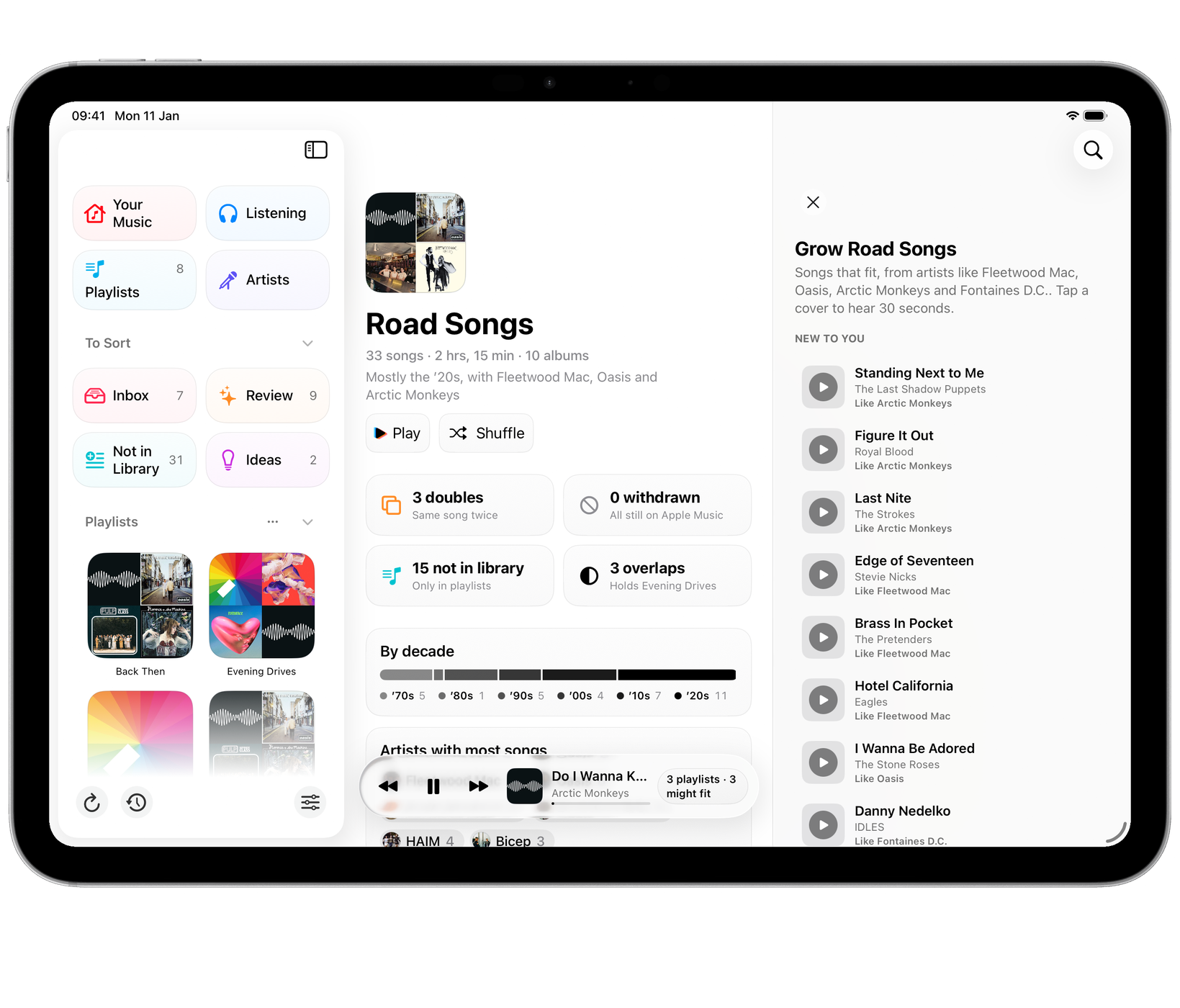

Medley looks at the artists a playlist leans on and asks Apple Music for:
- New to You: songs by artists like them that you don’t have yet
- More from Artists in the playlist: more by the artists already there
- More Suggestions, when you want to keep going
Tap a cover to hear 30 seconds. Choose + to add the song to your library and the playlist; on a Mac, Undo takes it back out of the playlist and leaves it in your library. Not for This Playlist sets a song aside for that playlist for good. Bring set-aside songs back with Settings ▸ Advanced ▸ Grow Suggestions Set Aside.
Grow needs a few songs by the same artists in a playlist before it can suggest what goes with them. It needs an internet connection, and adding songs from Apple Music needs an Apple Music subscription.
Forgotten Favourites
Your Music lists songs you played often, then not for two years or more. Make a playlist of these… makes a playlist called Forgotten Favourites, saving a copy to History first. The same songs also appear in Ideas as Rediscover.