

Orbit, Circle, Beacon, Echo and Watchlist share one appearance system, so a setting you learn in one is the same setting in the next. Aurora shares the same Appearance page, with its themes and light and dark choice.
Light and dark
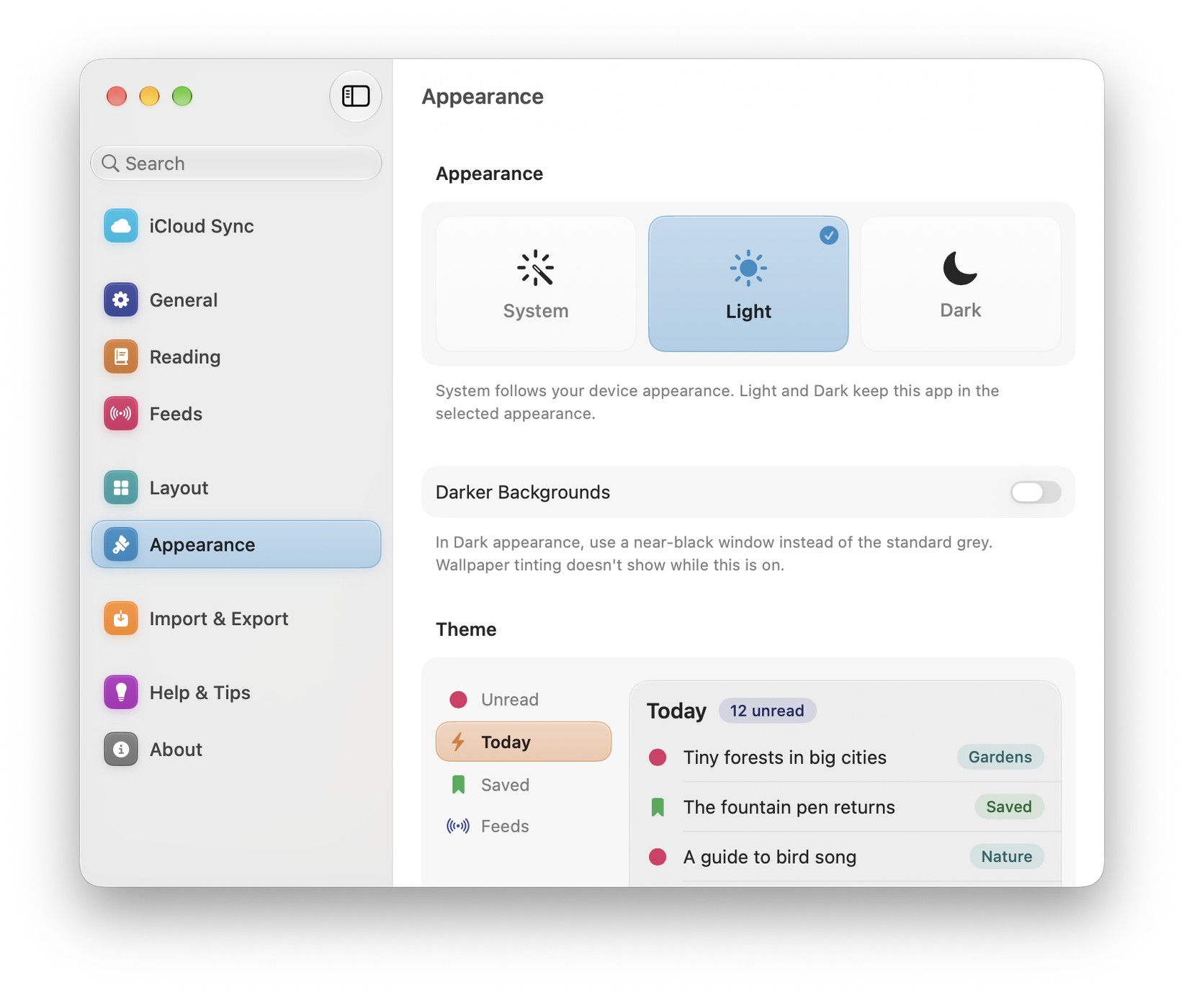
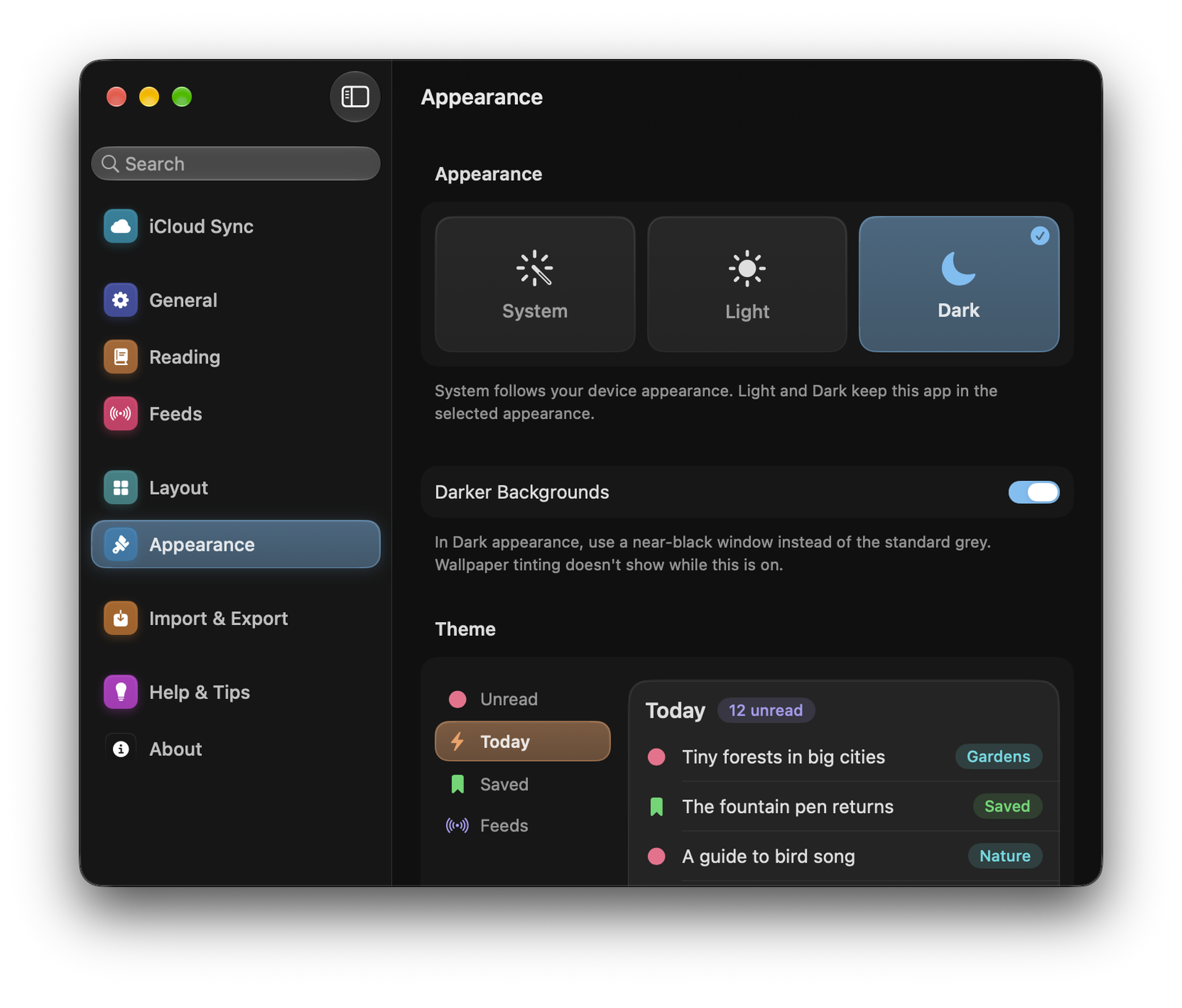
Settings ▸ Appearance ▸ Appearance offers System, Light and Dark. System follows your device, including any schedule you have set there.
On Mac, Darker Backgrounds gives the window a near-black background in Dark, instead of the standard grey. While it is on, the window no longer picks up a tint from your desktop picture.
Themes
Settings ▸ Appearance ▸ Theme applies a colour palette across the whole app. There are fourteen, and every app has all of them: Cobalt, Teal, Amber, Indigo, Scarlet, Violet, Forest, Sunset, Ocean, Blossom, Pastel, Jewel, Slate and Mono.
Each app starts in its own colour (Cobalt for Orbit, Teal for Echo, Amber for Circle, Indigo for Beacon, Scarlet for Watchlist and Violet for Aurora), so you can make the apps match, or keep them apart. A small preview of the app at the top of the page shows a theme before you choose it.
Every theme has stronger versions for when Increase Contrast is on in your device’s Accessibility settings.
Every theme is included during the 14-day free trial and with every payment option.
Fonts
Two separate settings, where both apply:
- Interface Font: the app’s own text, from the sidebar to the list titles. System, Rounded, Mono, Expanded or Condensed. Each is sized to sit at the same visual size as System.
- Entry Font (Echo) and Article font (Beacon): what you read and write in, set independently of the interface.
Text size
Text Size scales text within the app. On iPhone and iPad it also follows the system Dynamic Type setting, so setting it once in iOS Settings covers every app.
On Mac, ⌘ and ⌘- adjust size in Echo, Circle and Beacon’s reader, with ⌘0 returning to normal.
Layout
Apps with more than one pane offer Settings ▸ Layout ▸ Preferred layout: automatic, compact, regular or full. Automatic picks based on the window; the others let you force a shape you prefer regardless of size.
Several apps also offer a Sidebar Style: modern cards, or traditional rows.
Sounds and haptics
Open the sounds and feedback section in Settings. It is called Sounds & Haptics on iPhone and iPad; some Mac apps use Sound & Feedback:
- UI Sounds: the small audio feedback on actions.
- Haptic Feedback on iPhone and iPad, Trackpad Feedback on Mac. On Mac, the setting provides trackpad feedback.