

Some playlists are hiding in music you already have: three artists you always put side by side, a summer when you added lots and filed none of it, favourites you stopped playing. Medley finds them, and drafts a playlist you can shape before anything reaches Music.



Ideas
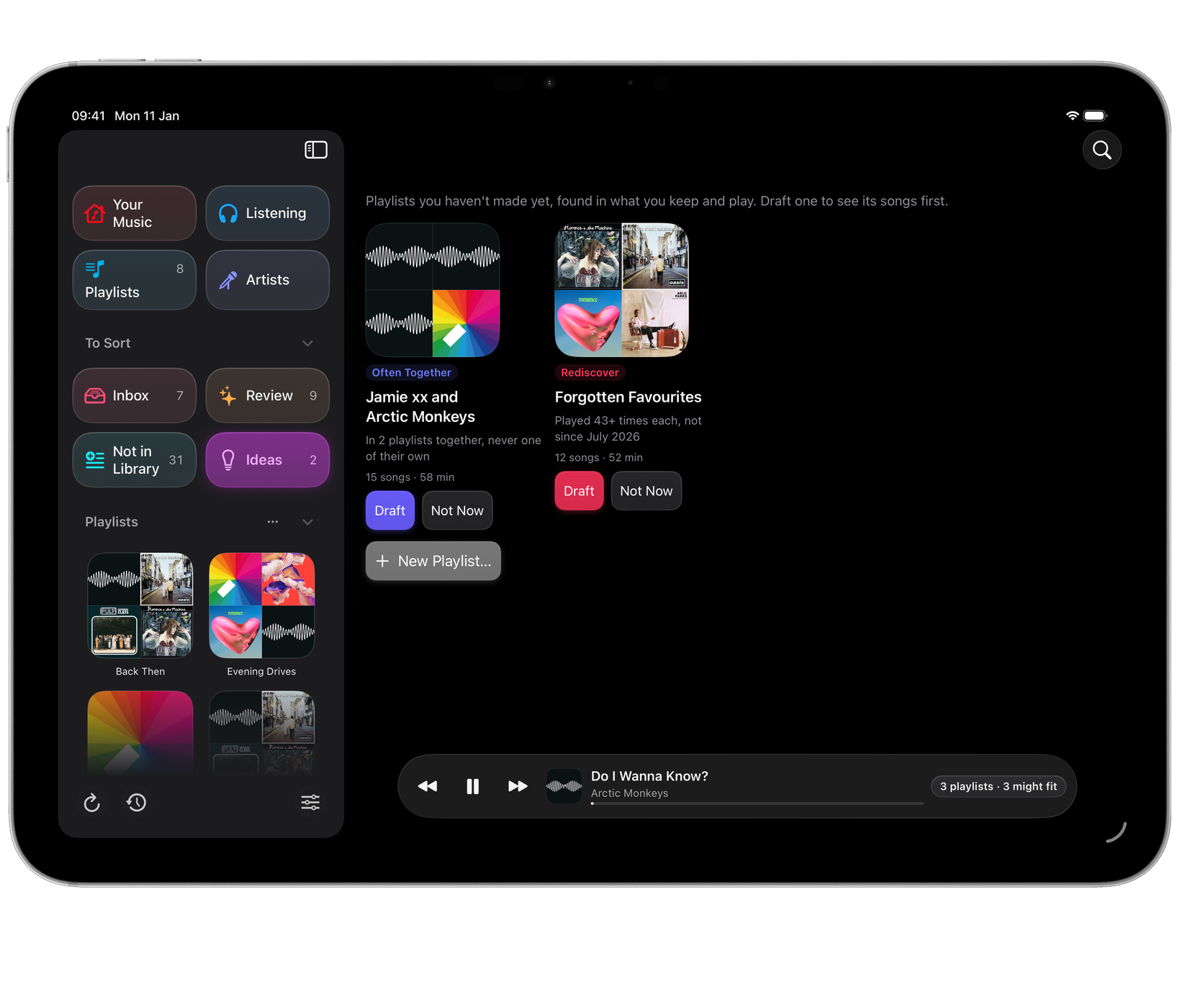
Ideas, under To Sort in the sidebar, lists playlists you haven’t made yet. Each one says what it is and why it’s there:
| Kind | What it means | Example |
|---|---|---|
| Often Together | Artists that share several of your playlists, but have never had one of their own | “In 4 playlists together, never one of their own” |
| An Era | A season when you added a lot of music and filed little of it | “Spring 2019” |
| Not Covered | A style from one decade that no playlist of yours leans towards | “Soul, the 1990s” |
| Rediscover | Songs you played often, then not for two years or more | “Forgotten Favourites” |
An idea only shows when none of your playlists already holds most of it. New ideas appear as your library grows. Your Music shows the best few under Playlists You Could Make.
Choose an idea, or Draft, to see its songs. Not Now sets it aside.
Start a new playlist
Choose New Playlist…: on the Ideas and Playlists pages, from Show All on Your Music, or with File ▸ New Playlist… (⇧⌘N) on a Mac. Pick where to start:
- A Mood: in your own words, or pick from a few: Calm, Late Night, Upbeat, Focus, Road Trip or Workout.
- An Artist: their songs, and the ones like them you already have.
- A Song: songs that keep its company.
- An Era: a stretch of time when you added music.
- Blank: an empty draft to fill yourself, from a playlist or a search.
Or start from one of the ideas listed below them.
Moods in your own words
Type something like “Rainy Sunday morning, nothing too loud” and choose Read My Mood. Medley turns it into the styles and decades in your library that fit, and whether to lead with favourites or leave out songs you often skip. It shows what it understood under Medley Read This As, so you can check before drafting.
This uses Apple Intelligence on your device: your words and your library stay on it. Without Apple Intelligence, pick a mood instead.
Artists like the one you chose
After you choose an artist, Medley lists Like them, Already Yours: Apple Music’s similar artists, kept to the ones in your library. Pick any to include.
Shape the draft
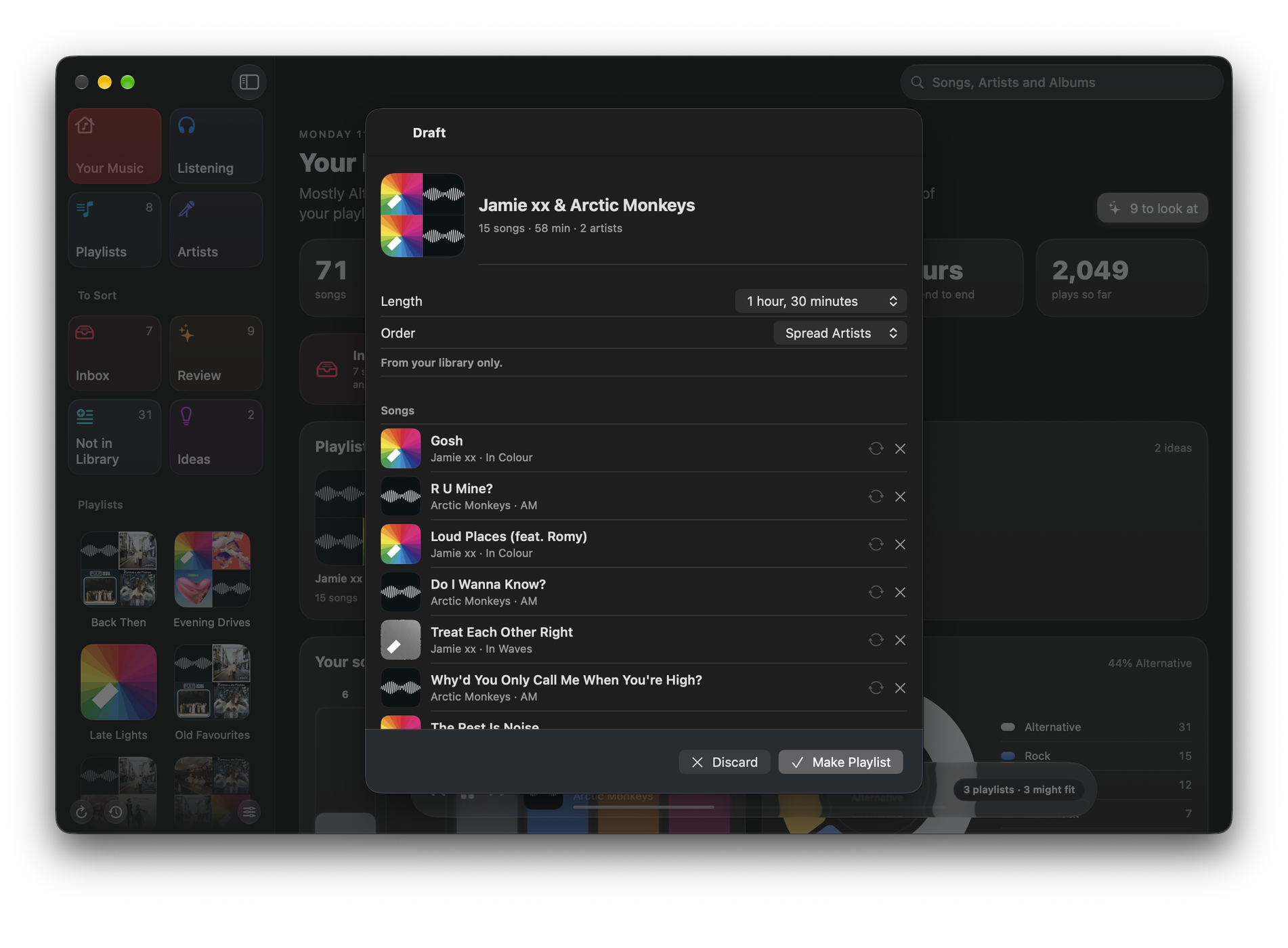
The draft shows every song with the reason it’s there, such as “Played 41 times”, “Rarely skipped” or “Shares 3 playlists”.
- Name: change it before you make the playlist.
- Length: how long it runs, or Every Song That Fits.
- Order: Spread Artists, so the same artist doesn’t play twice in a row where it can be helped, By Era, Best Fit First, or Shuffle.
- Swap a song for another that fits, or Remove it.
- Top Up from Apple Music adds a few songs from the catalogue that suit the draft. They join your library when you make the playlist, and stay there, as with Grow. This needs an Apple Music subscription.
Nothing reaches Music while you work on a draft. Choose ✓ Make Playlist to make it, or × to discard the draft.

After you make it
Medley saves a copy of your playlists to History first, then makes the playlist in Music, where it syncs to your other devices as usual.
If you change your mind, delete the playlist in Music. On a Mac you can also use Put Back in History. See History and Put Back.
From an AI client
On a Mac, a connected AI client can also ask Medley for ideas and drafts, and make a playlist if you have allowed it to change playlists. See AI access for Claude and other clients.