

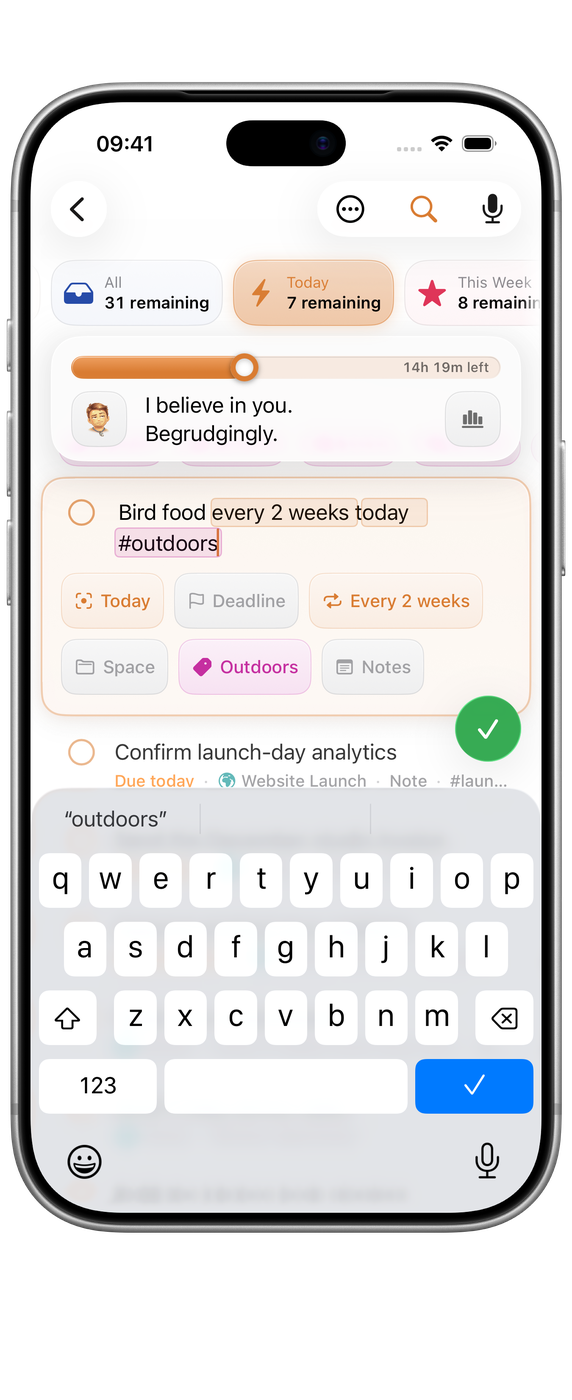
Orbit reads your sentence as you type it and shows what it found as chips above the field. Recognised phrases and their chips show the interpretation, so you can check it before you commit. The saved task keeps only the words that are actually the title.

Dates
Write dates in natural phrases or standard date formats.
| You type | Orbit files it as |
|---|---|
tomorrow | tomorrow’s date |
friday, next friday | that weekday |
next week, this weekend | This Week |
end of week, eow | end of the current week |
this month, next month | the relevant bucket |
12 March, 3/12 | that calendar date |
Times
A time attaches to the date Orbit already found: pay invoice friday 9am lands on Friday at 09:00. A relative date can also sit inside a longer sentence, such as call tomorrow at 9am about the invoice. Phrases work as well as clock times: tonight, this morning, this afternoon, end of day and eod all resolve sensibly.
Deadline phrasing is understood as a limit rather than a start: by tomorrow and before tomorrow set the boundary rather than scheduling the work for that moment.
Tags
Prefix a word with # to tag it: #work, #admin, #calls. Tags are removed from the title and attached to the task, and a new tag is created the first time you use it. Tags cut across Spaces, so #calls can collect work you would never file in one place.
Buckets, directly
If you know where something belongs, say so. These shortcuts skip date parsing entirely:
/tw: This Week/nw: next week, which files as This Week/tm: This Month/f: Future
Writing today, this week, this month or future in the sentence does the same thing.
Repeats
Recurrence is read from the sentence too: every monday, every month, every 3 weeks, every weekday. Orbit also understands where a repeat should stop: an end date or a number of occurrences.
By default a repeating task recurs from when you actually completed it, not from when it was due. A weekly bin reminder finished two days late becomes due a week after you did it, not a week after it was scheduled. See Repeats, deadlines and reminders for how to change that.
Reminders
Include a reminder in the same sentence: remind me at 8, remind me 30 minutes before. Orbit sets the reminder and leaves the title alone.
When you meant it literally
Orbit is deliberately conservative. It scores its own confidence and backs off when a phrase reads more like part of the title than an instruction. Possessives are a good example: today's agenda stays in the title, because “today’s” is describing the agenda rather than scheduling it.
If Orbit still reads something you meant literally:
- Look at the chips above the field before you press Return.
- Tap or click a chip to drop that interpretation and the words go back into the title.
- Or save the task and correct it in the task’s detail view.
Capturing without opening Orbit
On Mac, Quick Entry (Settings ▸ General) puts the same parser behind a menu bar item and the ⌃⌥Space shortcut, so you can capture from any app. Everything on this page works there too.
When and Deadline
When is when you plan to work on the task. Deadline is a separate limit. Check both in task details if a sentence includes deadline wording; changing one does not mean they should be the same date.