

Orbit organises tasks by when you plan to do them, rather than by subject.
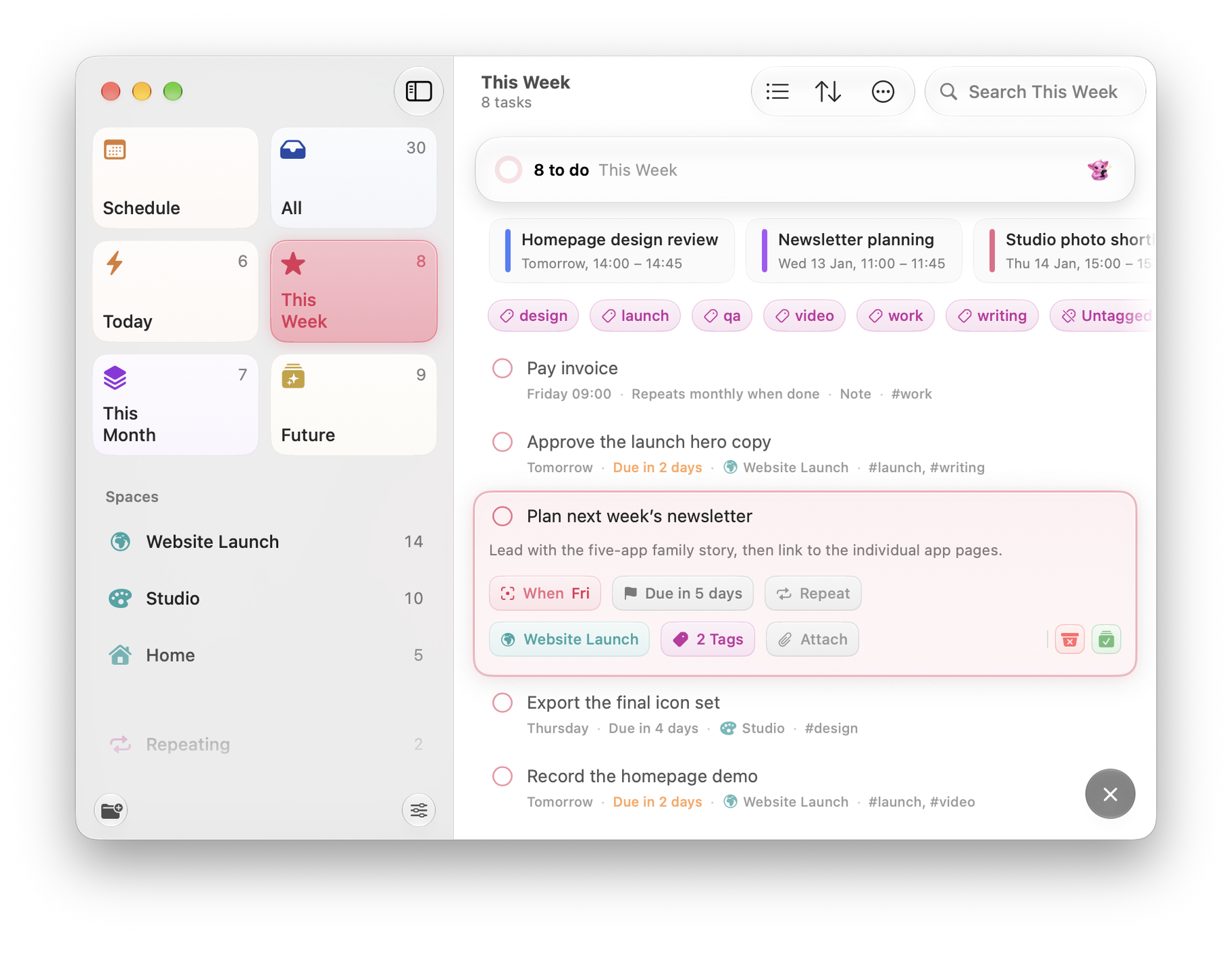

The four buckets
- Today: what you mean to finish before the day ends.
- This Week: the near term, without committing to a day.
- This Month: soon, but not this week’s problem.
- Future: genuinely later, held without guilt.
Alongside them the sidebar carries All, your Spaces, Done and Deleted. Settings ▸ Sidebar & Views ▸ Show Counts On controls which of those show a running count.
How tasks move
A task changes bucket when:
- you drag it to another bucket;
- you edit its date, and the new date falls into a different horizon;
- a date arrives, and Orbit promotes it: a This Week task dated today appears in Today.
Only dated tasks move automatically when their date enters a nearer bucket. Undated tasks stay where you place them.
Completed tasks
Three settings decide how finished work behaves, all under Settings ▸ General:
- Show Completed Today: keeps today’s completed tasks visible.
- Keep Completed at Bottom: sinks them under whatever is still open.
- Include Completed in Search: decides whether search reaches into things you have already done.
Making it simpler
If four horizons is more structure than you want, turn off Settings ▸ Sidebar & Views ▸ Show This Month and Future. The sidebar drops back to the nearer buckets, and This Month, Future and categories stop competing for attention. Nothing is deleted. Turning it back on restores the full timeline with everything still in place.
Reordering
Open ⋯ ▸ Reorder on iPhone. The View menu on Mac offers Reorder by When (⇧⌘S) and Reorder by Date Created (⇧⌘K). These reorder the tasks once; they are not a sort that stays on. List and board share that task order. In All, reordering can move tasks across the planning buckets. Use the Undo action in the confirmation or ⌘Z on Mac to restore the previous order.