

The whole design rests on one idea: nothing reaches your queue without you saying yes.
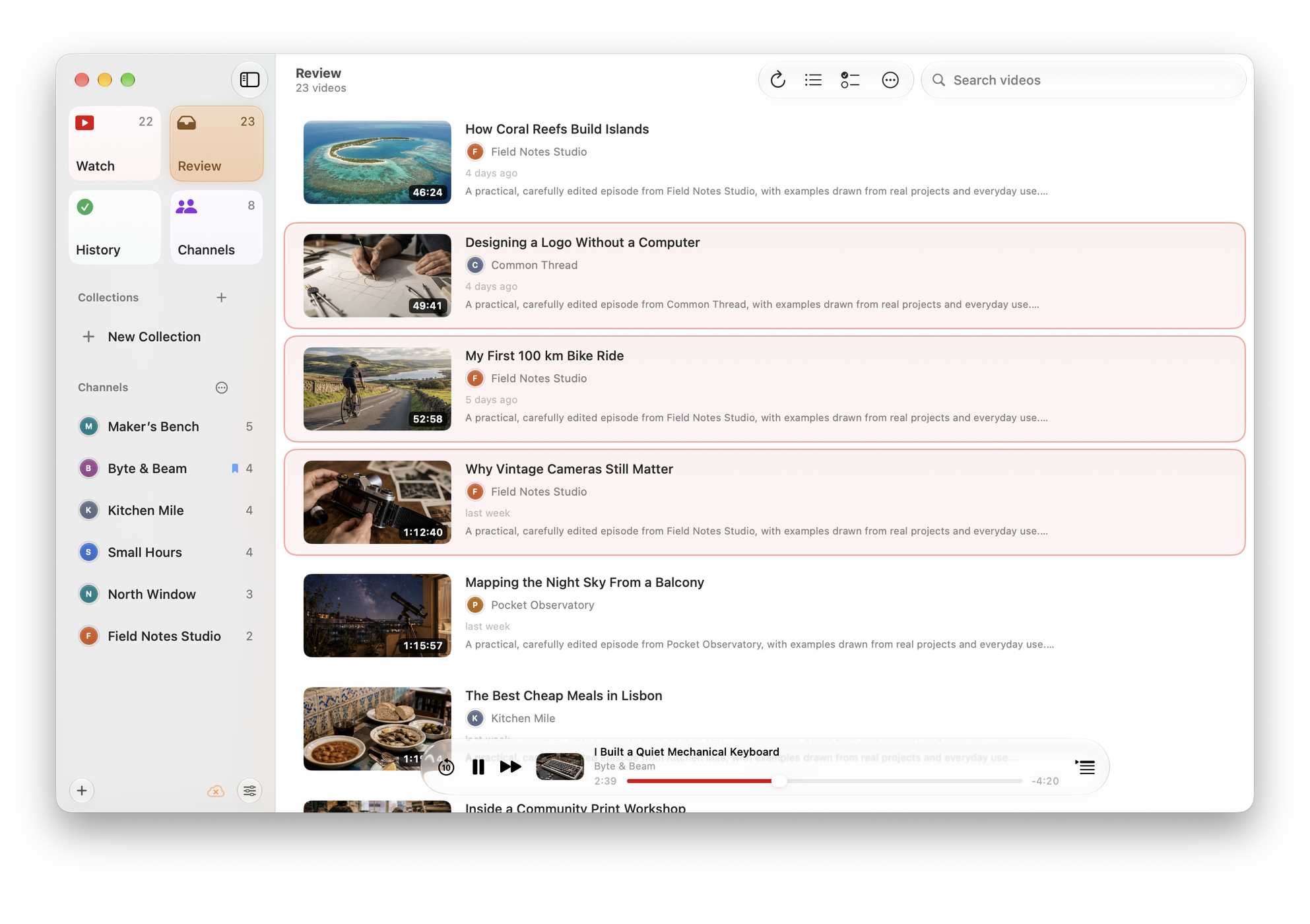

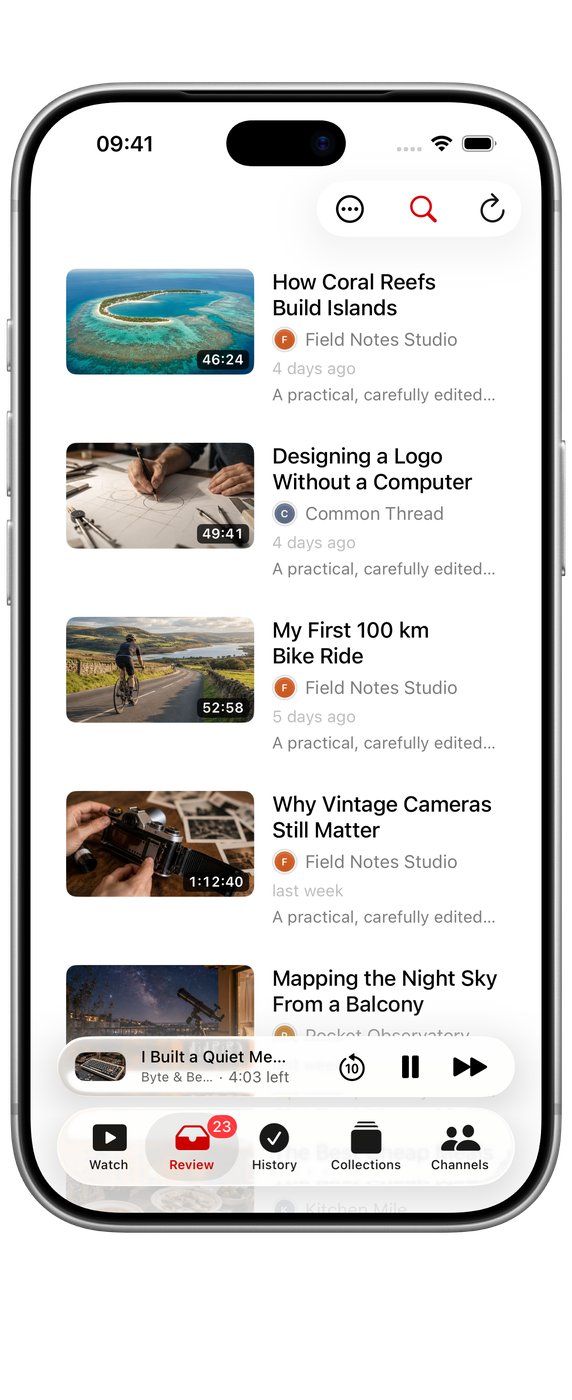

Review
Every new upload lands in Review. You give it a quick verdict:
- Save: it moves to Watch.
- Dismiss: it moves to History and leaves Review.
Review separates choosing videos from watching them, so you can save or dismiss each upload quickly. On Mac, hover over a Review thumbnail for Save, Dismiss and Play. Use the offered Undo action if you made the wrong choice. Review actions are also available through the item menu.
Watch, and Up Next
Watch holds what you kept. Within it, Up Next is your queue, reorderable by dragging.
Settings ▸ Lists & Sorting ▸ Add New Saves To decides whether newly kept videos go to the top or the bottom of the queue.
The Watch Sort By setting orders the list by date added, title, channel, date published or duration. The ⋯ menu shows the current choice beside Sort, Length and Collection. Sort by duration to find a video that fits the time available.
History
Everything you have watched. Below it, a folded Recently Dismissed section keeps the videos you dismissed this week, with Restore to Review and Save to Watch, in case a swipe went the wrong way. Older dismissed videos are on each channel’s page, under Dismissed. In Settings ▸ Lists & Sorting, History has Sort By and Direction controls.
File into collections
Choose Add to Collection from a video’s menu to group it by interest. Filing a video from Review, or one you dismissed, also saves it to Watch; watched videos stay watched. A video can belong to several collections.
Linked channels can file uploads automatically, but those new videos still wait in Review. Removing a video from a collection does not dismiss it. See Collections for creation, channel links and playback.
Clearing out dismissed videos
Dismissed videos do not need to be kept forever. Settings ▸ Data ▸ Keep Dismissed Videos sets a retention period, after which they are pruned automatically. Clear All Dismissed Videos does it immediately.
Settings ▸ Data ▸ Statistics shows the counts across channels, Watch, History, dismissed and filtered, so you can monitor the size of your library.
Selecting several at once
Videos can be multi-selected and acted on together. On Mac, ⇧⌘D deselects all, and ⌥⌘Return plays the selection now.