

If a channel publishes formats you do not want in Review, filters can hide them without unfollowing the channel.
Hiding Shorts
Settings ▸ Filters ▸ Hide YouTube Shorts is one switch that keeps vertical short-form uploads out of Review, Watch, History and channel pages entirely.

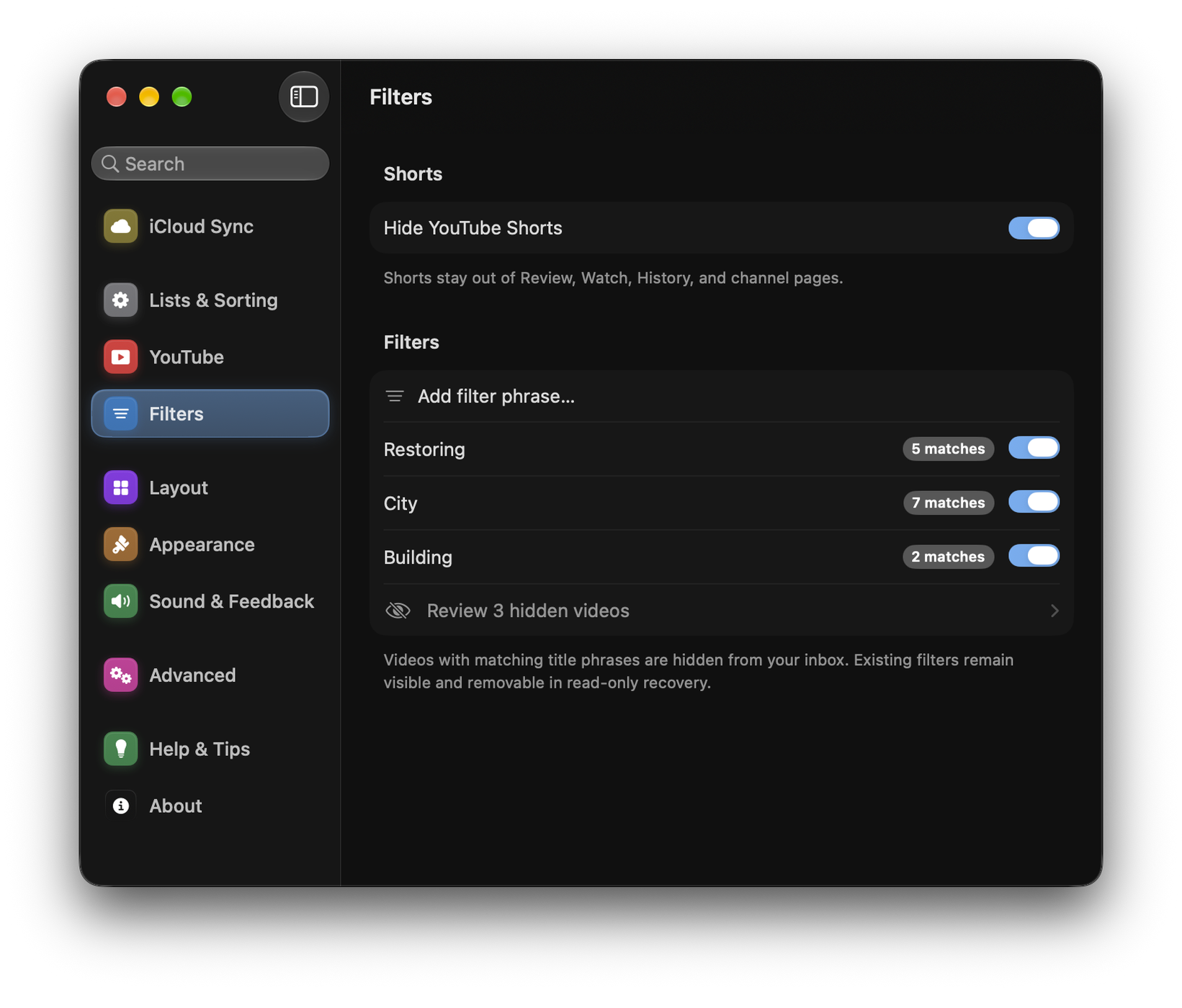
Title filters
Settings ▸ Filters ▸ Add Filter Phrase hides uploads whose title contains a phrase. Useful examples:
#shortsLIVEfor channels that stream constantly- A recurring series name you do not follow
Settings ▸ Filters ▸ Manage Filters lets you enable, disable and delete them individually. Disabling is better than deleting while you are working out whether a filter is too broad.
Filters are unlimited and included with either payment option.
Checking what a filter caught
In Review, ⋯ ▸ Show Filtered shows how many uploads your filters are holding back and puts them first in the list, ahead of everything else; Hide Filtered puts them away again. Settings ▸ Filters ▸ Hidden Filtered Videos shows what was filtered out too. Check it after adding a new phrase, because a filter that is slightly too greedy is easy to write and invisible unless you look.
Filters versus muting
- A filter hides certain uploads from every channel.
- Muting quiets one channel entirely while keeping the follow.
Use a filter for a type of video; mute one channel to hide all of its uploads.