

Orbit can bring in your tasks from Things, OmniFocus, Todoist and Apple Reminders, as well as its own backups. Everything is in Settings ▸ Import & Export, on iPhone, iPad and Mac.

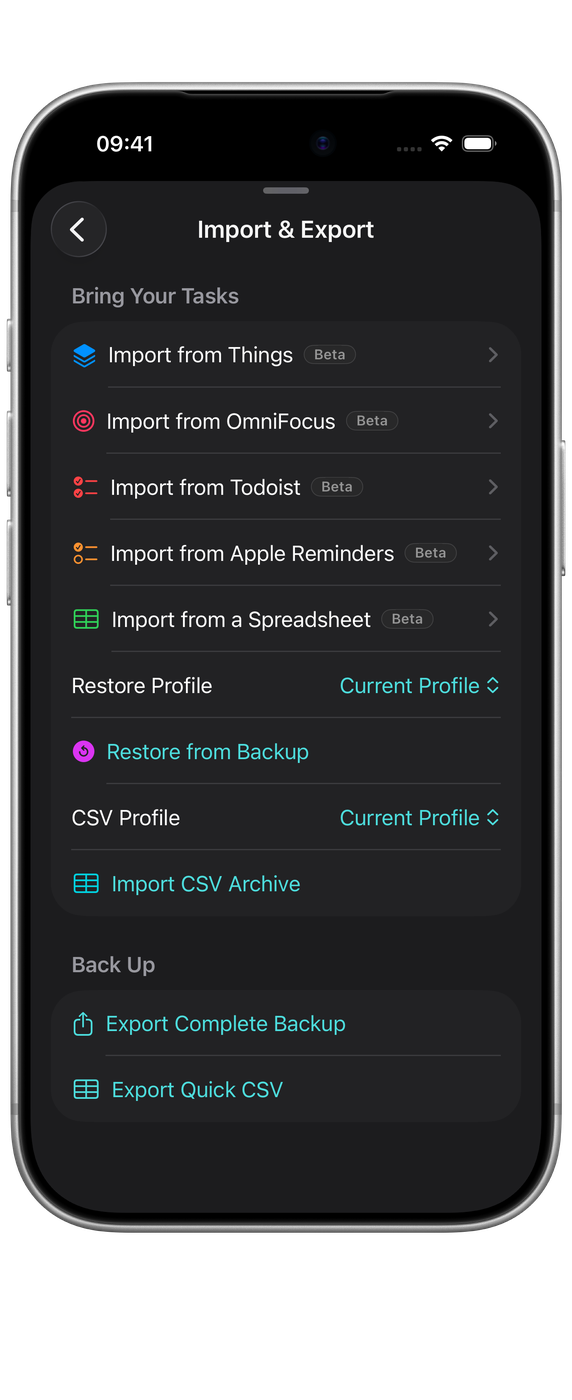
What Orbit can import
- Things 3: your library, read directly. Projects, areas, headings, tags, checklists, deadlines and repeating to-dos.
- OmniFocus: a CSV or TaskPaper export, or a ZIP of either.
- Todoist: a project’s CSV export, or the backup ZIP from your Todoist settings.
- Apple Reminders: choose which lists to bring in. Orbit asks for access to Reminders first.
- Any spreadsheet saved as CSV: TickTick, Notion, Excel, Numbers, Google Sheets, or a list you typed yourself.
- An Orbit backup or CSV archive: the files Orbit itself exports.
Moving from Things
On a Mac, choose Import from Things and select the Things database. Orbit opens the right folder for you. Inside it, open the ThingsData folder and choose Things Database.thingsdatabase.
On iPhone and iPad, Things keeps its database inside its own app, where Files can’t reach it. The simplest route is to import on a Mac and let iCloud bring the tasks to your other devices.
Areas and projects become Spaces. Tasks under a heading go into their project, with the heading’s name at the top of the notes. Checklist items are added to the notes as a list. Reminder times come across on the task’s date.
Importing from a spreadsheet
- In the other app or spreadsheet, export or save your list as CSV. In TickTick, its backup option saves one.
- In Orbit, go to Settings ▸ Import & Export ▸ Import from a Spreadsheet and choose the file.
- Check which column becomes the title, notes, due date, Space, tags and completion. Orbit suggests a match from the column names, and shows the first few tasks so you can check it.
- Choose Import.
Dates are read the way your region writes them, so 03/04/2026 is 3 April in the UK. Words like “tomorrow” or “every Monday” in the date column become dates and repeats. Files that use semicolons or tabs instead of commas work too. Importing an updated copy of the same list adds only the new tasks.
Moving from OmniFocus, Todoist or Reminders
- OmniFocus: File ▸ Export, then choose CSV or TaskPaper.
- Todoist: in a project, choose Export as a template and save the CSV. For everything at once, download a backup from Settings ▸ Backups.
- Reminders: nothing to export. Choose the lists to import in Orbit.
Todoist labels become tags. Sections and subtasks are kept as a line in each task’s notes, because Orbit doesn’t have sections or subtasks. Todoist priorities aren’t imported.
From OmniFocus, flagged actions get a “flagged” tag, dropped actions are left out, and repeats set to start again after completion keep that behaviour. From Reminders, a link on a reminder is added to its notes.
Before you import
- Keep your original export until you’re happy with the result.
- Import into an empty profile if you want to check the result before mixing it into your live list (see Spaces, tags and profiles).
- Importing again skips tasks that are already in Orbit, so a fresh export after you’ve added a few tasks brings in just the new ones.
What comes across
Titles, notes, dates, completion, tags and projects come across from every importer. Repeating tasks keep their schedule, and Orbit shows the next one in the usual way. Existing tasks in Orbit aren’t changed.
Import CSV Archive reads the archive Orbit writes with Export Quick CSV. For a spreadsheet from anywhere else, use Import from a Spreadsheet.
Exporting and backing up
Export remains available even if a subscription ends, because your tasks are yours.
Settings ▸ Import & Export ▸ Export Complete Backup writes a full archive, and Export Quick CSV writes a spreadsheet. Restore from Backup reads an archive back in, and Import CSV Archive reads a spreadsheet.
Both export actions can be pointed at the current profile or another one, so a profile can be moved on its own.
Starting over
Settings ▸ Advanced ▸ Erase All Data removes everything, locally and from iCloud. It is deliberate, confirmed, and cannot be undone. Export first.