

Every Wells Code app syncs through your own private iCloud account. There is no Wells Code account or Wells Code sync server. Sync uses iCloud, so troubleshooting starts with the Apple Account, iCloud availability and each app’s sync setting.
The five checks
Work through these checks in order.
- Signed in with the same Apple Account on both devices. Two accounts will never converge, however long you wait. Check in System Settings ▸ [your name], or Settings ▸ [your name] on iPhone and iPad.
- iCloud Drive is on. The apps use CloudKit, which needs iCloud enabled for the device.
- Enough iCloud storage. A full iCloud account can stop sync. Check System Settings ▸ [your name] ▸ iCloud.
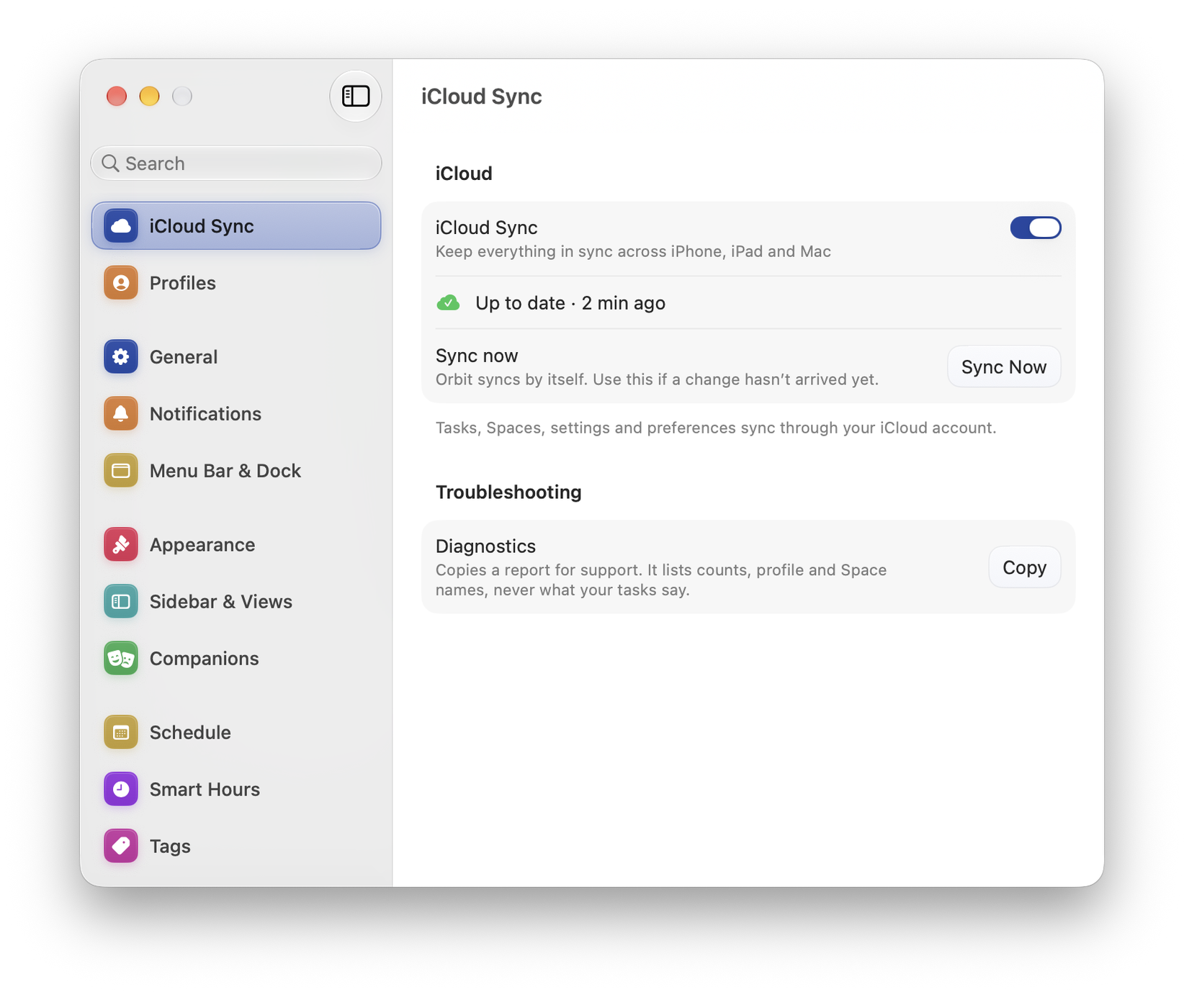
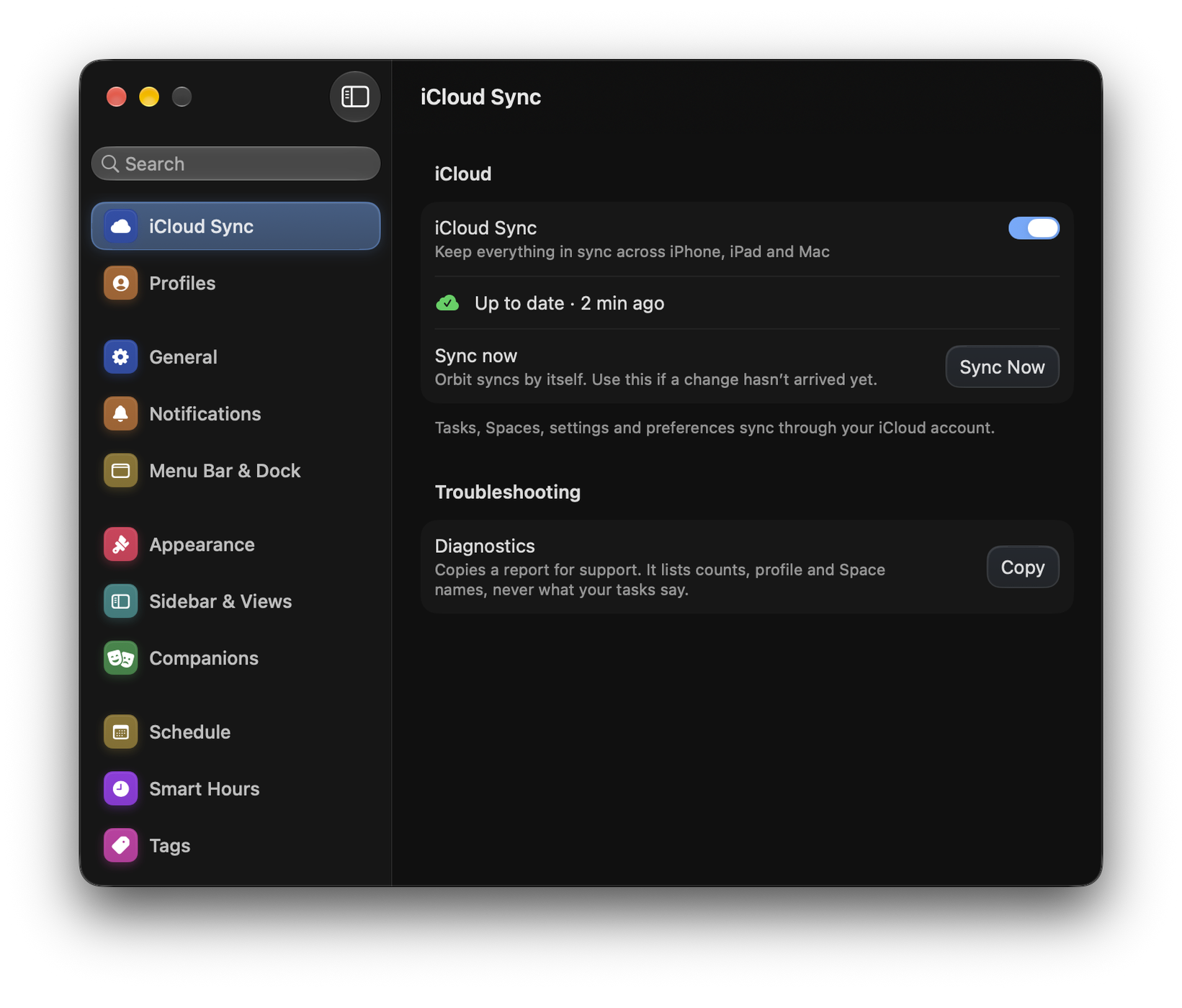
- Sync is on. In Orbit, Echo and Aurora, check Settings ▸ Sync ▸ iCloud Sync on each device. Circle, Beacon and Watchlist have no switch: they sync whenever iCloud is available, and Settings ▸ Sync shows the status. In Echo, account checks do not turn sync back on after you have disabled it.
- Both devices have been online and open recently. Sync happens when an app runs; a device that has not been opened for a week has nothing to push.
Force a sync
Every app has Settings ▸ Sync ▸ Sync Now. Do it on the device with the newer data first, then open the app on the other device.
Two iCloud accounts
If you have changed Apple Account, or use a different one on one device, some apps will notice the mismatch and pause rather than merge two libraries. Beacon and Circle offer Settings ▸ Sync ▸ Use this iCloud account to adopt the current one deliberately.
Pausing rather than merging is intentional: an automatic merge of two libraries is very hard to undo.
Recovery tools
If devices still disagree after the checks above, each app offers a way to rebuild from one side. These tools replace one copy of your data. Export a backup where available and confirm which device has the correct library before continuing. Do not erase or reinstall the only device that still holds missing content.
| Tool | What it does | Use when |
|---|---|---|
| Reset & re-download | Replaces this device’s local library with the copy in iCloud | The iCloud copy is the one you want to keep |
| Re-upload everything | Pushes this device’s copy back up to iCloud | This device has the copy you want to keep |
These live under Settings ▸ Sync ▸ Troubleshooting, and each asks before it runs. Echo has both, and its On This Device counts show how many entries, photos and videos and versions this device holds. Circle and Beacon offer Reset & re-download. Aurora has Fetch everything again, which re-reads all that iCloud holds and merges it in without removing anything. Watchlist needs neither: its Sync page shows the status and what is on this device.
Media that did not arrive
Echo stores photos and video separately from entry text, so an entry can arrive before its pictures. Settings ▸ Data has Check Media Integrity, Re-download Synced Media and Re-upload Media to iCloud. Run the integrity check first; it tells you which of the other two you need.
If none of this works
Settings ▸ About ▸ Copy Full Diagnostics puts a technical summary on your clipboard (in Orbit, Settings ▸ Sync ▸ Troubleshooting ▸ Diagnostics copies one just for sync). Paste it into an email to support@wellscode.com. It includes versions, settings and sync state that can help support diagnose the issue. See Reporting a bug.