

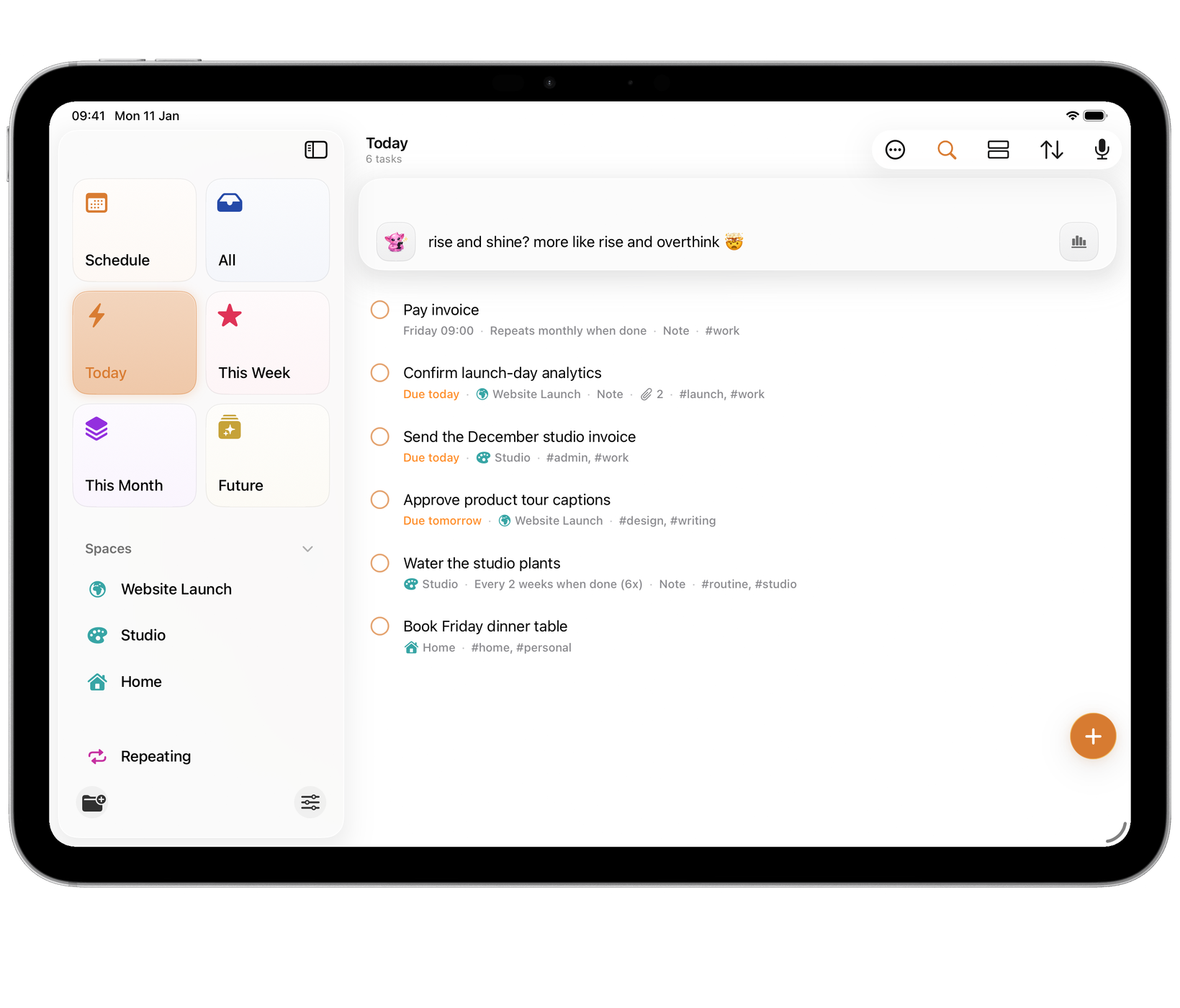
A task can carry the things it needs: the photo of the broken part, the signed form, the PDF you are reviewing.
Adding an attachment
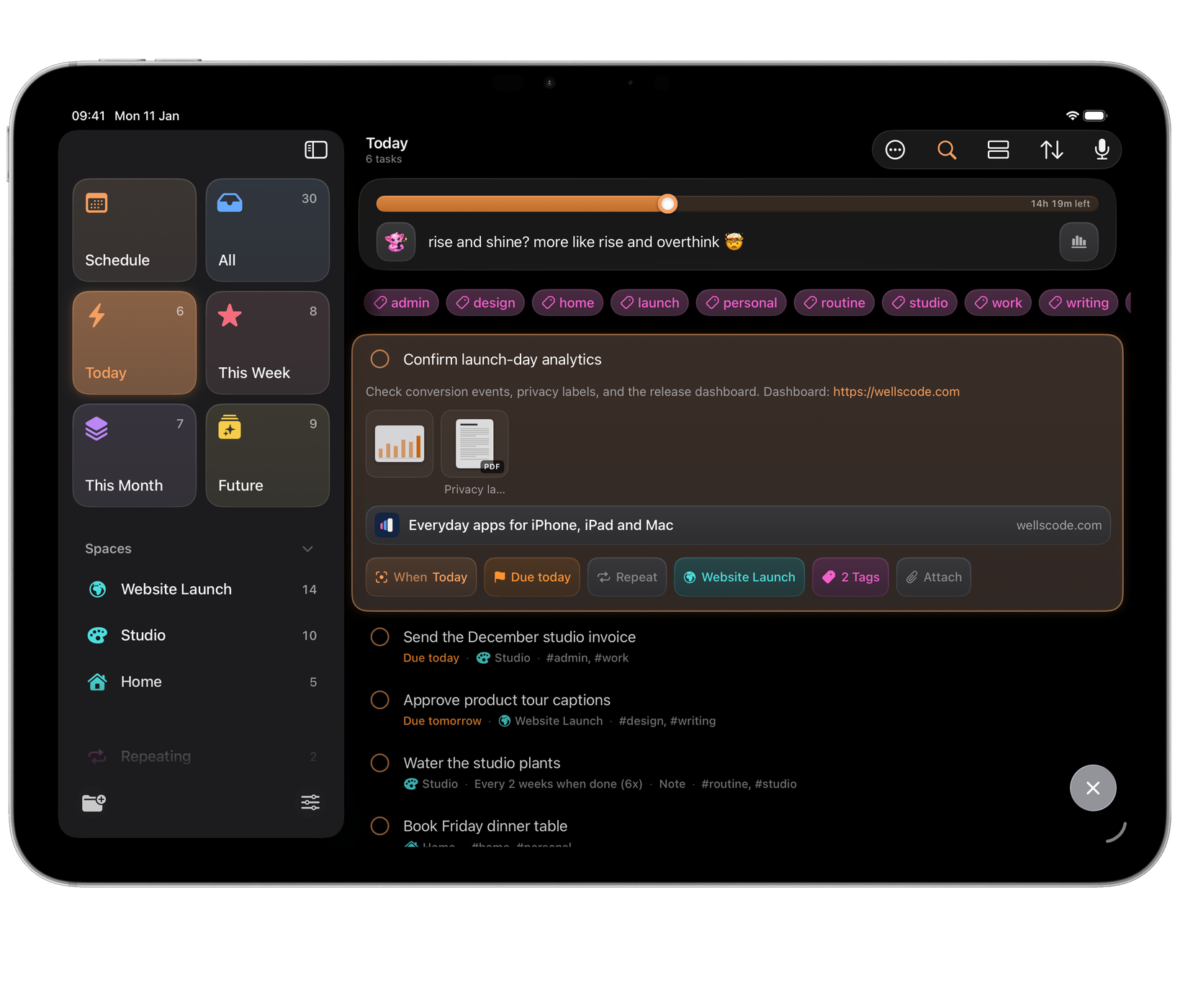
Open the task and choose Attach:
- Take Photo or Scan Document, on iPhone and iPad.
- Photo Library to pick photos you already have.
- Choose File for a PDF or any other file.
- Paste what you have copied.
You can also drag a photo or file onto an open task, or onto a task’s card on the board, and drop it when Drop to Attach appears.
A photo is named after when it was taken, such as “Photo 6 Oct 2026 at 18:40”. Choose Rename Attachment to call it something else.
Viewing them
Attachments show as tiles in the task, with a preview of each. Tap or click one to open it full size; on Mac, Quick Look opens it, and Escape closes it again.
Links you put in a task’s notes appear as cards, with the page’s title and site, so you can see where a link goes before you open it.
Size and storage
Each file can be up to 50 MB. Orbit keeps its own copy, so the task still has it if you move or delete the original. Very large photos are stored at up to 4K.
Attachments sync through iCloud with the rest of your tasks, and are included in Orbit’s backups. When a repeating task comes round again, the new one starts without the previous one’s attachments.
When you move a task to Deleted, its attachments go with it; they are removed for good only when the task is.