

A wallpaper can be used from the Studio or straight from a gallery. Presets and recents count too: nothing has to be saved first.
On a Mac
Choose Set as Desktop Picture, in the inspector or the toolbar.
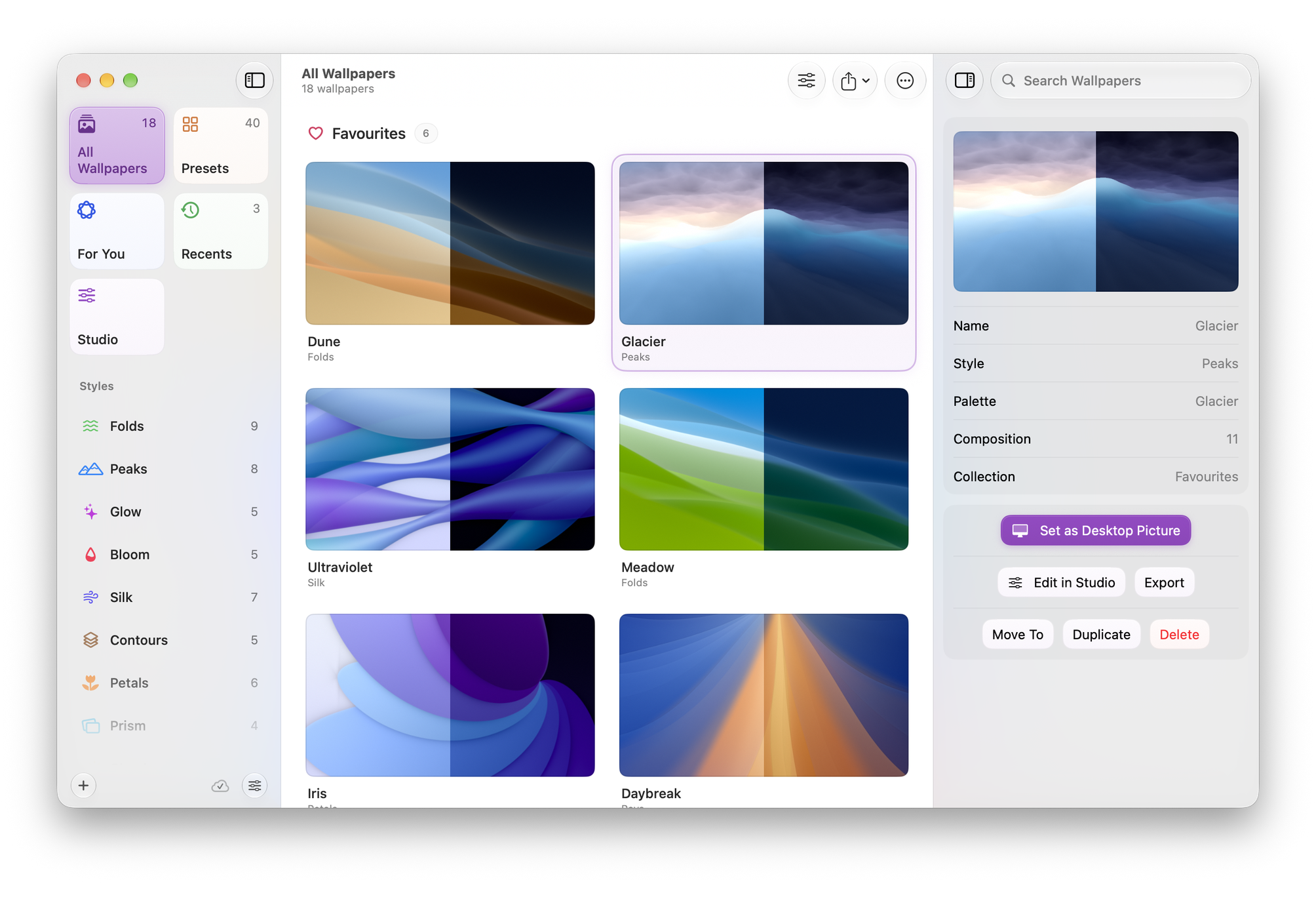

Aurora makes a dynamic wallpaper at the size of your main display and applies it to every display. A dynamic wallpaper holds the light and dark versions in one file, and macOS switches between them with Light and Dark Mode.
On iPhone and iPad
Choose Save to Photos. Aurora adds two pictures to your library, one light and one dark.
iOS and iPadOS do not let an app set the wallpaper, so the last step is yours:
- Open Settings ▸ Wallpaper and add a new wallpaper.
- Choose Photos and pick the picture Aurora saved.
- Set it for the Lock Screen, the Home Screen or both.
The first time you save, Aurora asks for permission to add to your photo library. It asks only to add pictures; it cannot see the photos already there.
For another device
Made For decides the size. It starts as the device you are using. To make a wallpaper for something else, choose that device under Made For and export it. See Sizes and export formats.