

The Studio is where a wallpaper is changed. The preview follows every control as you move it.
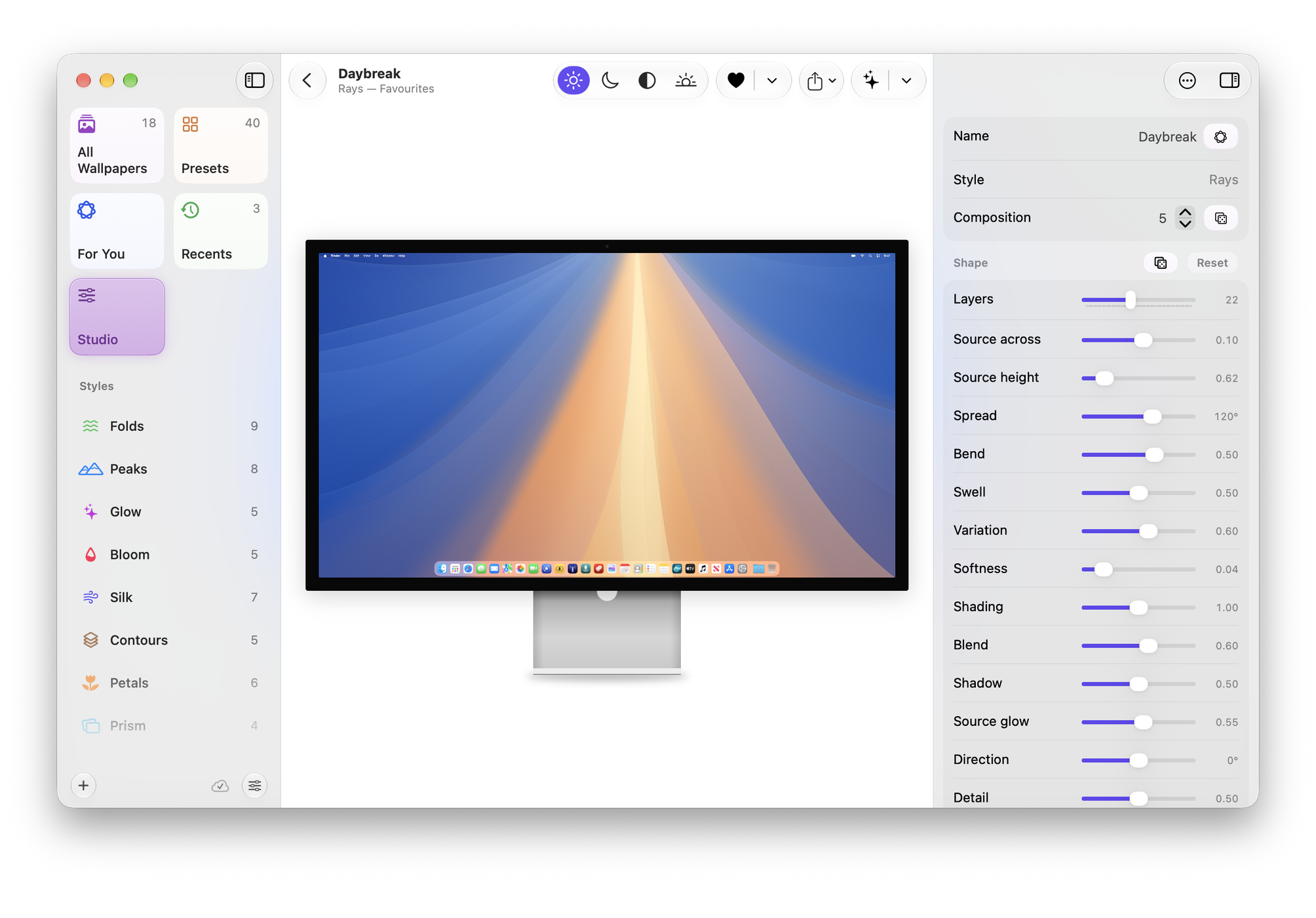
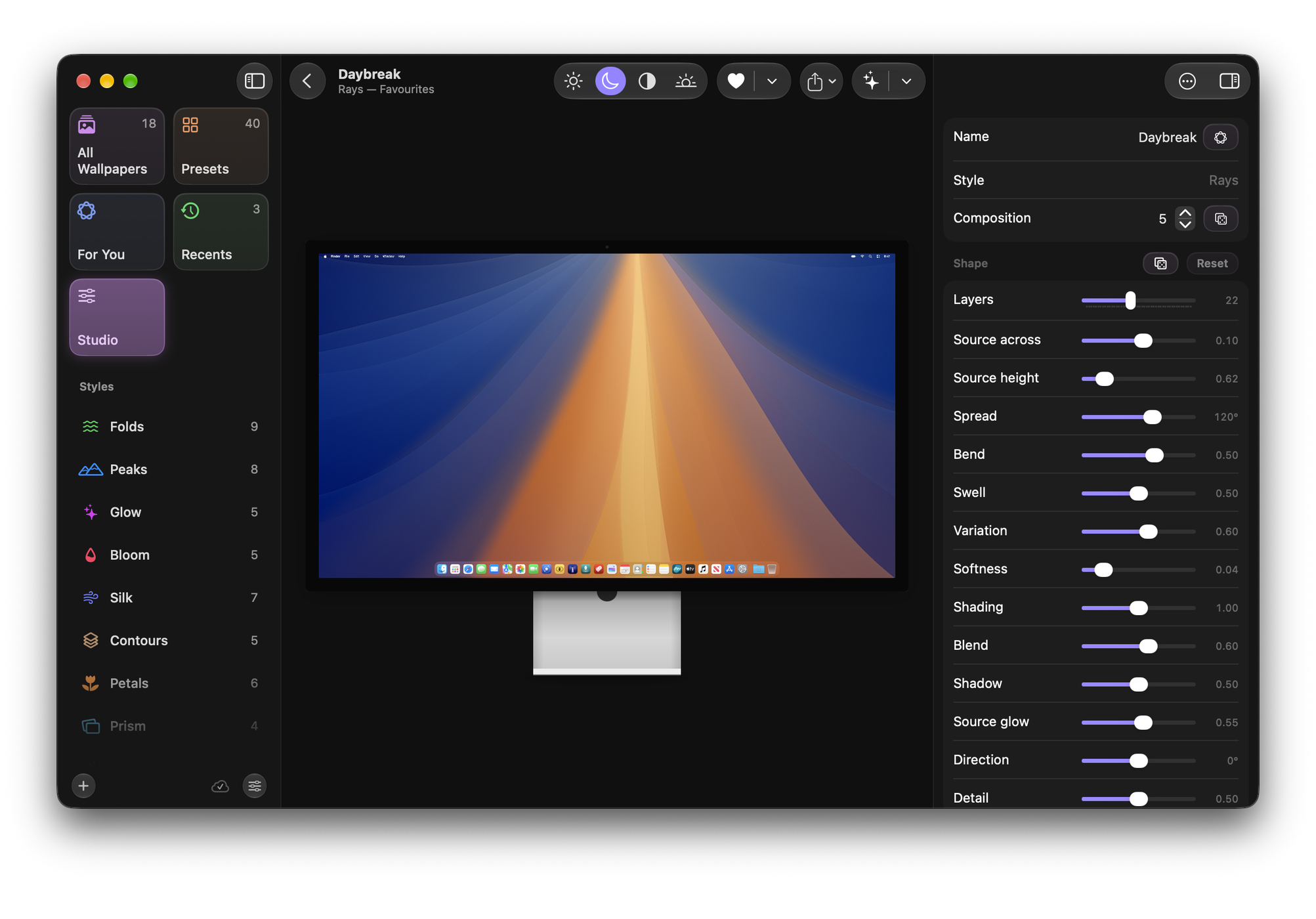
On a Mac and on iPad the controls sit in a column beside the preview. On iPhone, tap Controls to bring them up as a sheet, with the preview still in view above it.
Three quick ways to something new
- Surprise Me opens a random style, composition and palette.
- New Composition keeps the style and colours and rearranges the picture.
- Shuffle Colours keeps the picture and makes a new matched pair of palettes, one light and one dark. It’s also the dice beside Colours in the Studio.
Variations
Variations shows eight takes on the open wallpaper, each different in one clear way: Another Palette, New Composition, Shifted Colours or New Shape. Choose one to see it large; nothing changes until you choose Use This, and Cancel leaves your wallpaper as it was. Original is always the first, so you can compare. More Like This shows eight variations of the one you’ve chosen, and Shuffle shows eight others. On a Mac, double-click one to use it straight away.
On a Mac it is in the toolbar and in the Wallpaper menu (⌥⌘V). On iPhone it is in the bar at the bottom of the Studio.
Shape
Each style has its own controls, so Folds has layers and curvature where Peaks has a summit height and valley haze. In Folds, turn up Ridges and Haze for layered ranges of hills. The dice beside Reset moves every control at random; Reset puts the shape back to the style’s own settings.
The Composition number is the arrangement. The same style, composition, shape and colours always draw the same picture, so a number you like can be returned to.
Colours
Each style has five or more palettes, shown on your current composition with light on the left and dark on the right.
Below them, one pad changes the mood of the colours, like Photographic Styles on iPhone. Drag across to turn the hue round the colour wheel, and up or down for airy or deep. The slider beneath runs from muted to vivid, and the moods above it, such as Warm, Airy and Vivid, are quick starting points. Double-click or double-tap the pad to go back to the palette as it was designed. Same for Light and Dark moves both appearances together.
Fine-tune has the exact values, including temperature and range. Custom Colours lets you set each colour yourself.
Light, Dark and Both
The switch in the toolbar chooses what the preview shows. Both splits the preview down the middle, light on one side and dark on the other.
Saving
The heart saves the open wallpaper to your first collection, or updates it if it is already saved. The menu beside it saves to a collection you choose, saves a copy, or makes a new collection.
A saved wallpaper changes only when you update it. Until then the title says “edited”, and Revert Changes puts it back.
Undo and Redo step through every change to the open wallpaper, including opening a different one. Dragging a slider counts as one step.