

Folders
A folder is an ordinary group of feeds, such as News, Football, Long reads. Create one with ⌥⌘N on Mac, then drag feeds in.
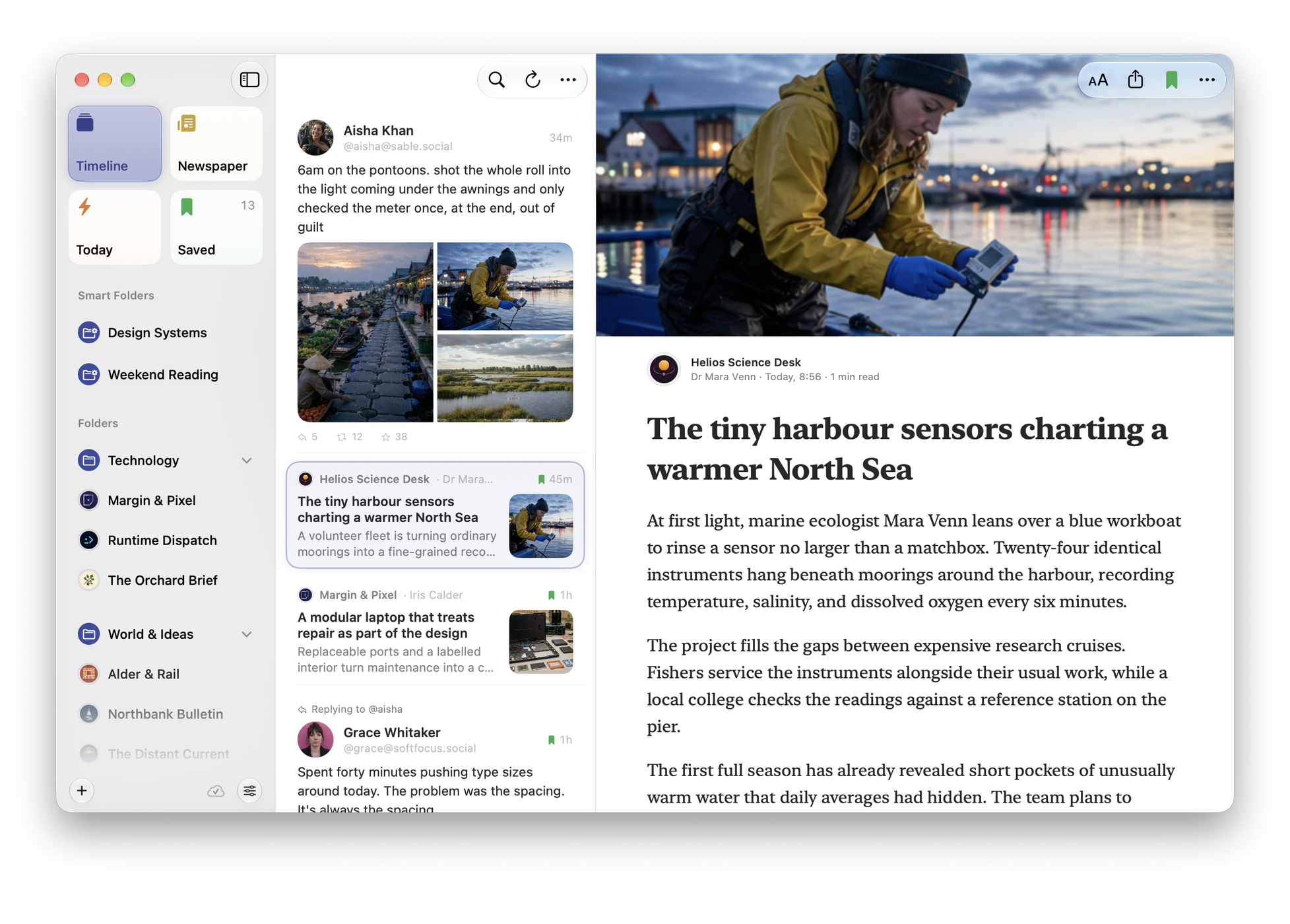
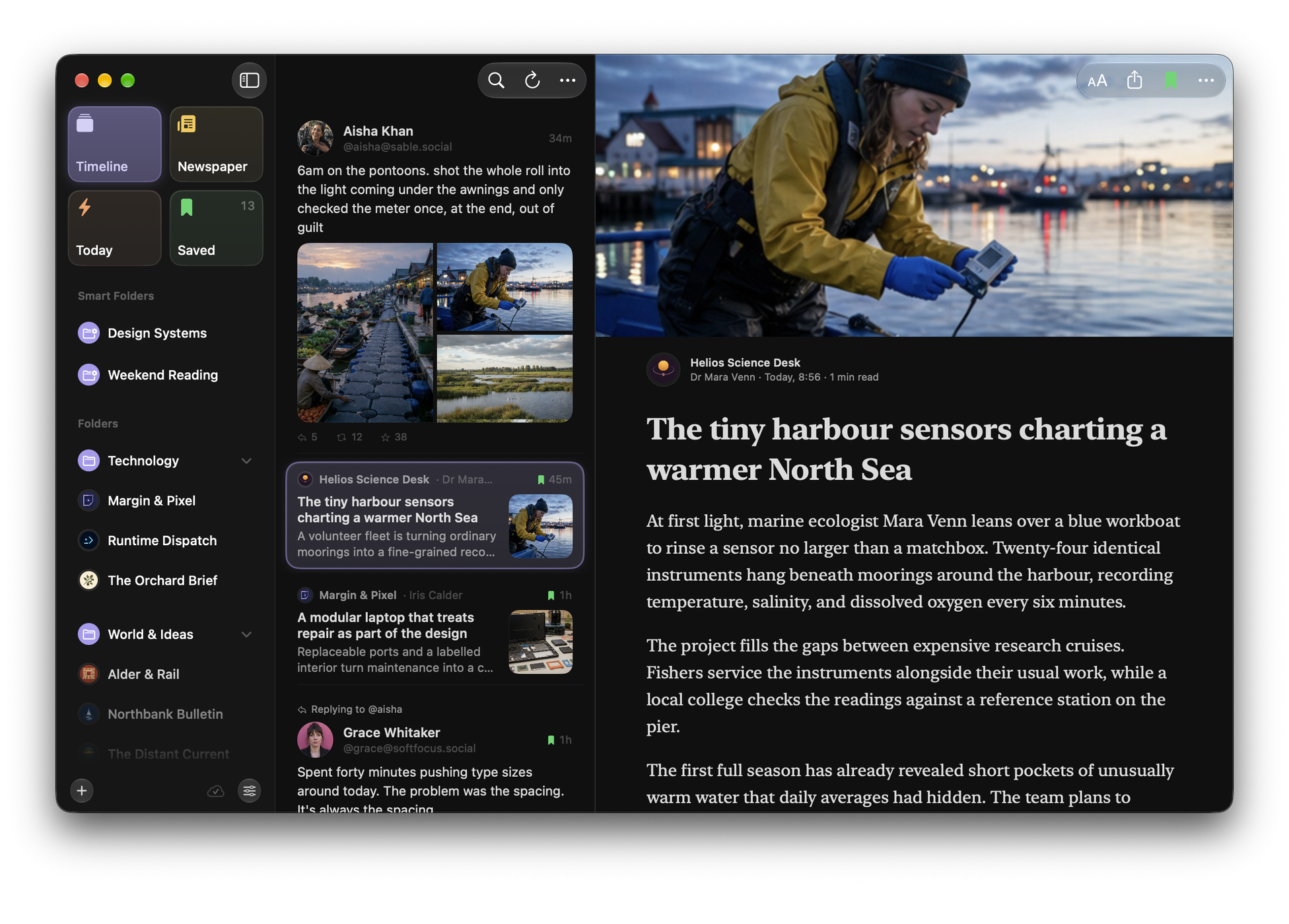
A folder is a place of its own: select it to read just those feeds, with its count beside the name. Folders are for reading in a mood: when you want football and not work, you open the folder rather than filtering the whole timeline.
Colours, icons and folders inside folders
Choose Edit Folder… from a folder’s menu to give it an Icon and a Colour, which show in the sidebar and on its pill. Under Inside, put it inside another folder, or choose Top Level to bring it back out. New Folder Inside… makes one in place. A folder inside another shows its feeds in both, so opening the outer folder shows everything.
Organise for Me
With four or more feeds not yet in a folder, open the ⋯ beside Feeds in the sidebar and choose Organise for Me…. Beacon reads what each feed writes about, on your device, and suggests a handful of folders. Nothing moves until you press ✓, and what you get are ordinary folders you can change. It needs a device with Apple Intelligence.
Pins
Choose Pin to Sidebar from the menu of a feed, a person, a folder or a Smart Folder to put it in the row under Timeline, Newspaper, Today and Saved, where it’s one tap away. On iPhone, pins also show as pills along the top of the list. Unpin takes it out again.
Smart Folders
A Smart Folder is a saved search. Define it once and it stays current as feeds refresh. Anything matching appears automatically, from any feed, without you filing it.
Choose New Smart Folder…, give it a name, choose where to Look in, and say what it should contain; the preview shows what matches as you type. While searching, Save as Smart Folder… turns the search into one. Edit Smart Folder… in its ⋯ menu changes any of it later, including where it looks.

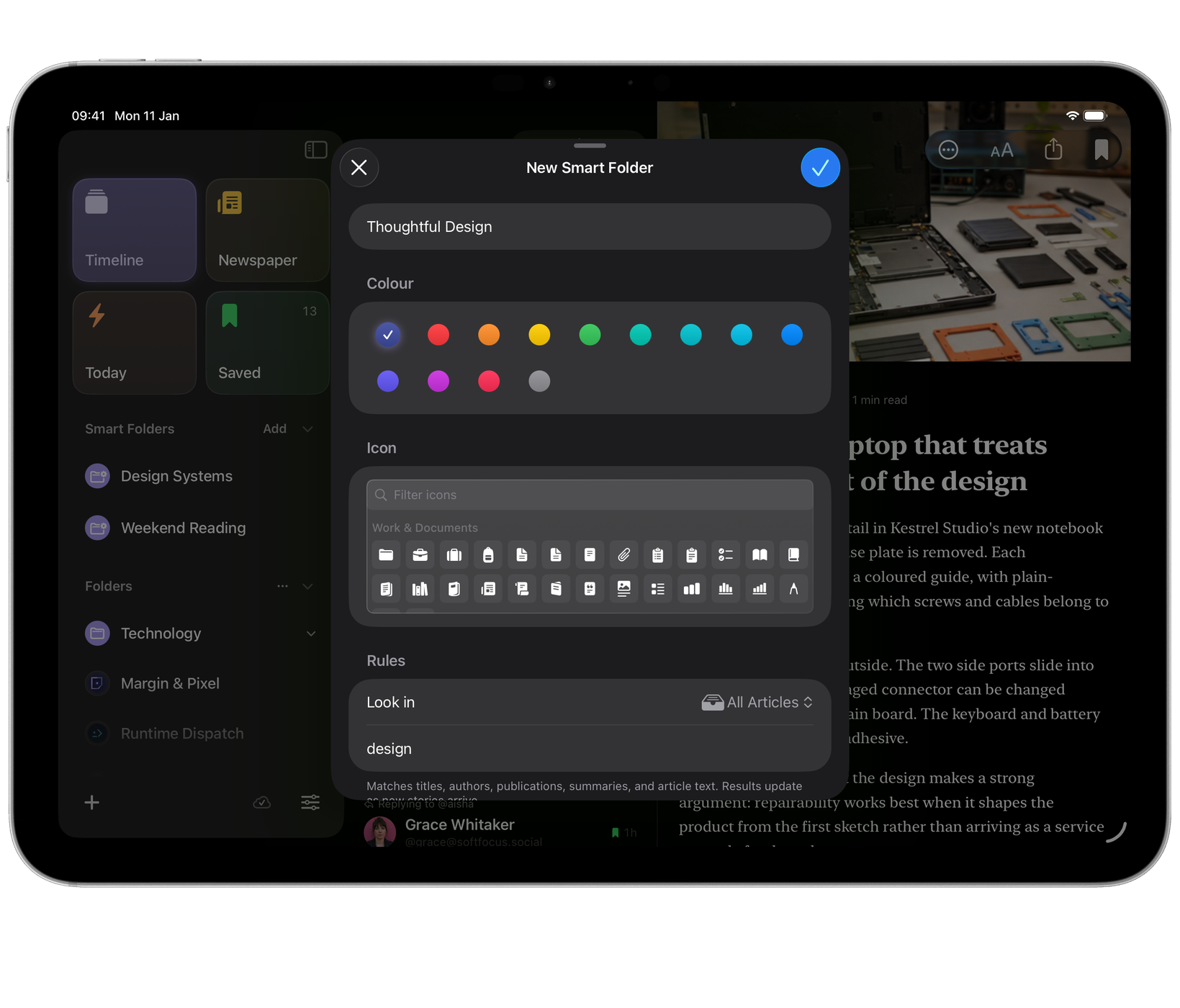
Good uses: a person’s name across every publication, a topic you are tracking, a phrase you want to catch when it appears. Smart Folders are unlimited and included with every payment option.
Saved
Save anything you want to come back to; it appears in Saved (⌘3). Saved articles are exempt from Beacon’s clean-up: however you set item age, they are never removed. See Refresh, feed health and tidying up.
Choose Remove from Saved when you are done with one. Unfollowing a feed removes all of its articles, Saved ones included, and Beacon says so before it does.
Muting a noisy feed
A feed that posts forty times a day can be muted so it stops driving the timeline while you keep following it. Choose Mute from the feed’s menu; Unmute brings it back. It is the middle option between tolerating it and unfollowing.
Notifications for a feed
To hear about one feed as soon as it posts, choose Notify for New Articles from its menu; a tick shows it’s on. When a refresh brings that feed something new, Beacon sends a notification, and tapping it opens the article. Beacon asks for permission the first time.
Muted words
To hide a topic rather than a feed, add it to Muted Words, in Settings ▸ Feeds or from any list’s ⋯ menu. Each word or phrase shows how many articles it is hiding.
An article whose title or summary contains a muted word is left out of every list except Saved: Timeline, Today, Unread, feeds, folders, Smart Folders, the counts and the widget. It does not notify you either. Matching ignores capitals and accents, and finds the word inside longer ones.
To unmute a word, swipe it away on iPhone and iPad, or select it and click the remove button on Mac.